Treatment plan and Estimate
Before you start
- Plan work on the chart first: record a condition and leave Done today off. See Chart teeth.
- Prices come from your price list in Settings › Services.
Steps
1. Open the Chart list
In the encounter, scroll below the chart. Chart list is the first tab in the row of views, and it opens by default.
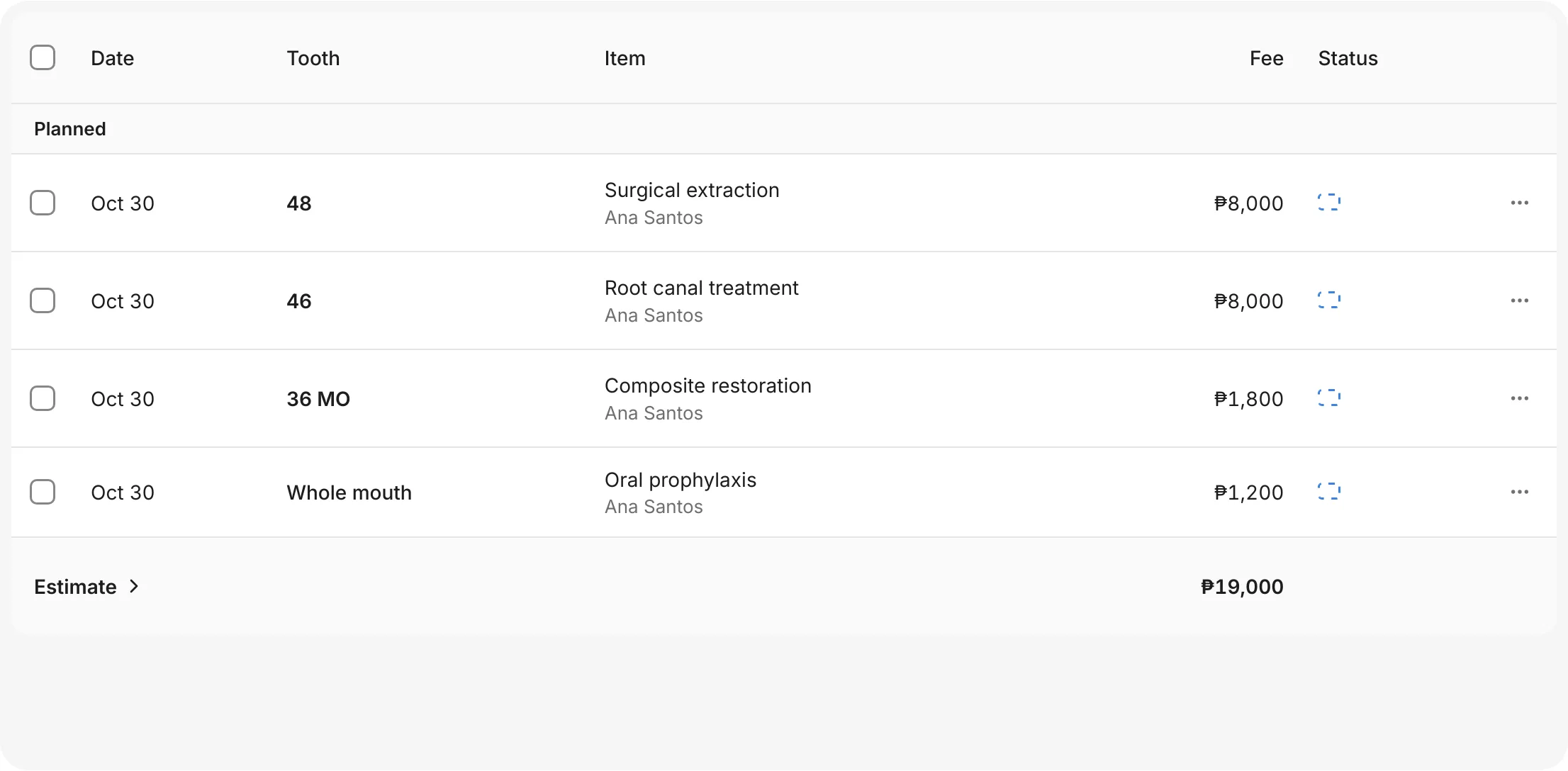
The list shows each item with its Date, Tooth (and surfaces, for example 36 MO), Item, Fee and Status. It's grouped into Planned, Done today, Declined and Conditions without treatment. A group only appears when it has something in it.
At the end of Planned, the Estimate row adds up the fees of all planned work.
You should see: your planned work and its Estimate.
2. Update an item
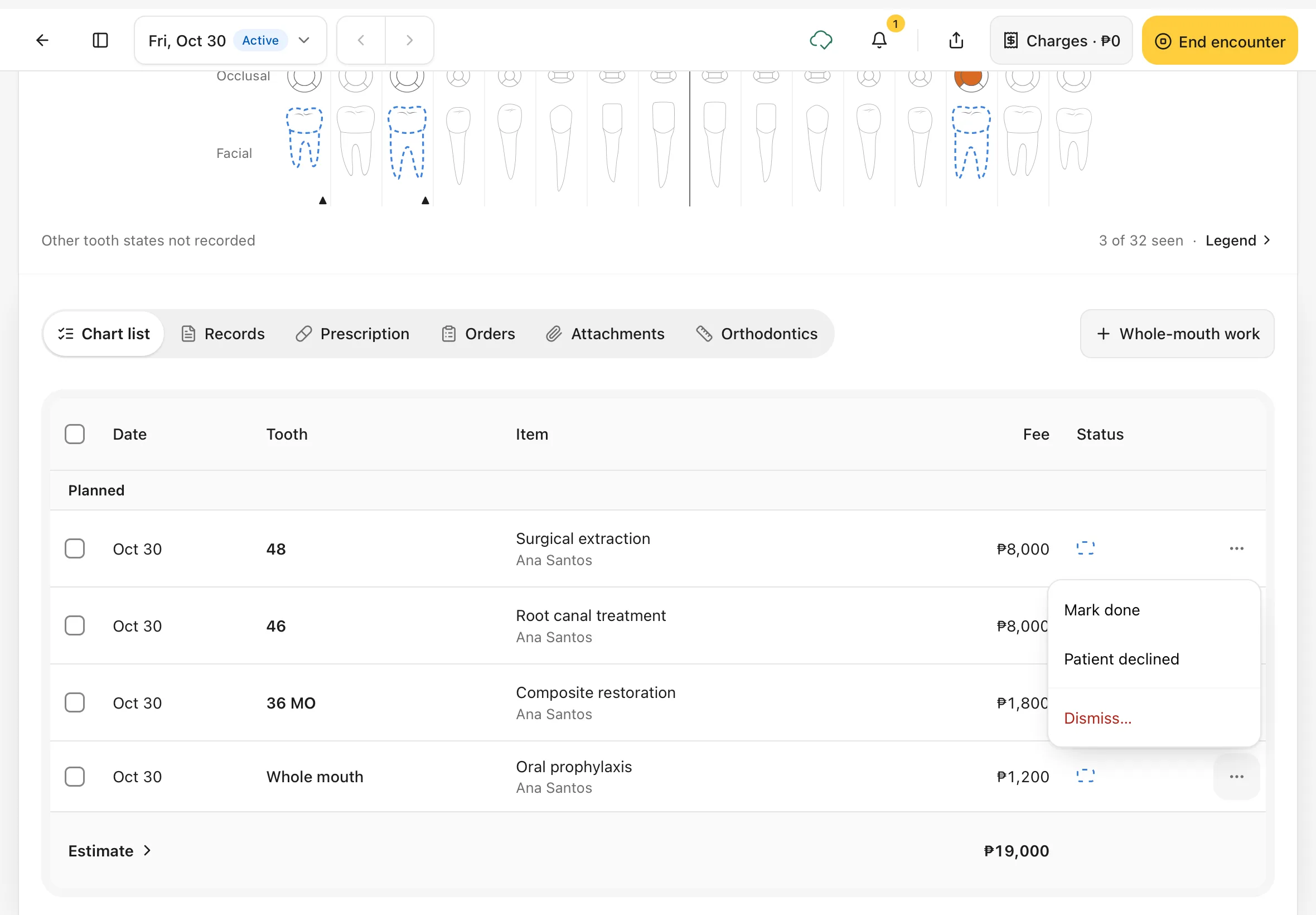
Tap ⋯ at the end of a planned row:
- Mark done: you did the work in this visit. It moves to Done today.
- Patient declined: the patient doesn't want it. It moves to Declined.
- Dismiss…: take an item off the plan, for example when it's no longer needed. You'll be asked why (step 5).
You should see: a small menu with Mark done, Patient declined and Dismiss….
3. Check the groups
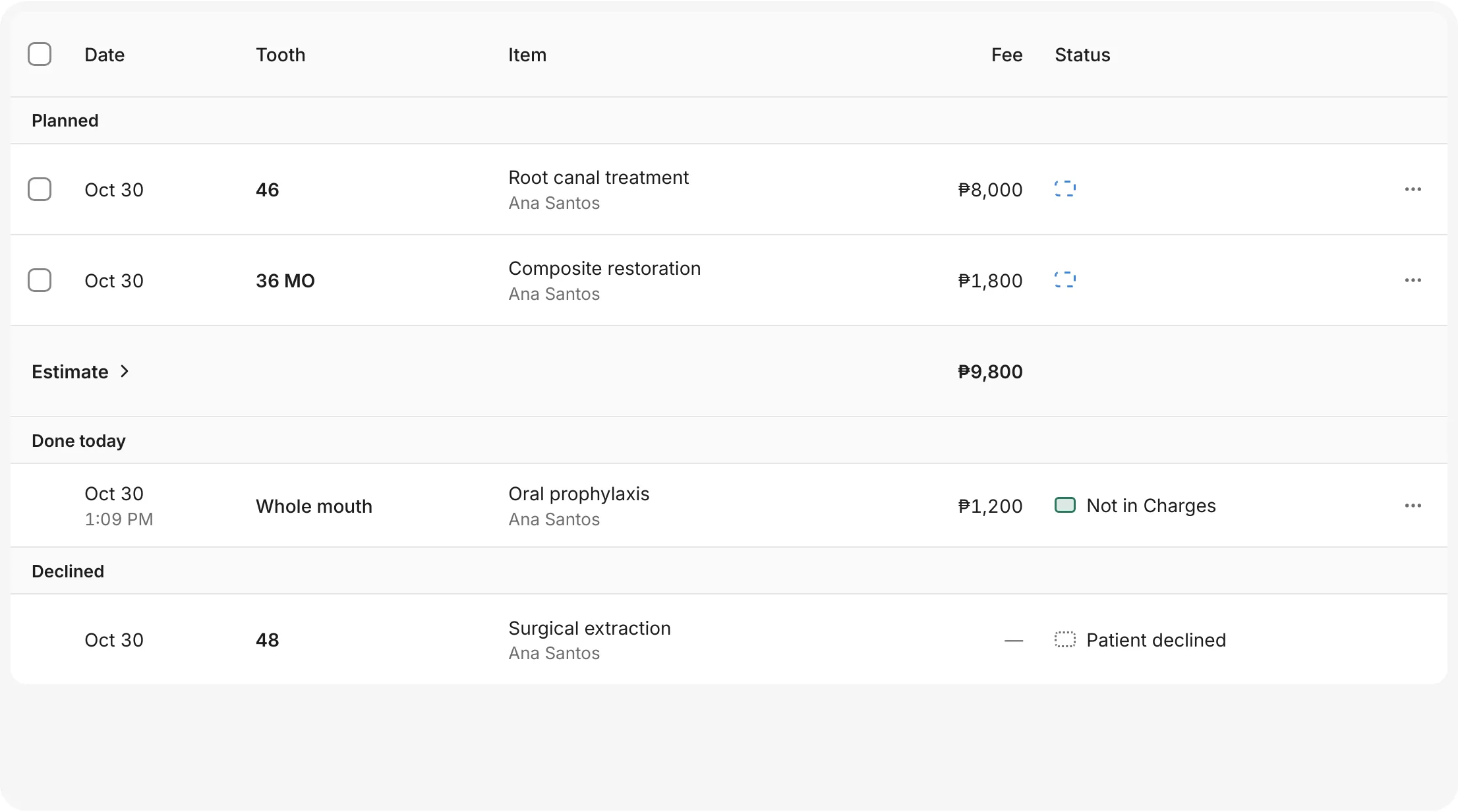
The Estimate only counts work that's still planned, so it goes down as work is done or declined.
- Work in Done today shows Not in Charges until it's on the bill. See Finish the visit.
- Declined work shows no fee and the status Patient declined.
You should see: the item you marked done under Done today, the declined one under Declined, and a smaller Estimate.
Update several items at once
Tick the boxes on the left of the planned rows, or the box in the header to select all, then choose Mark done or Clear.
4. See the whole treatment plan
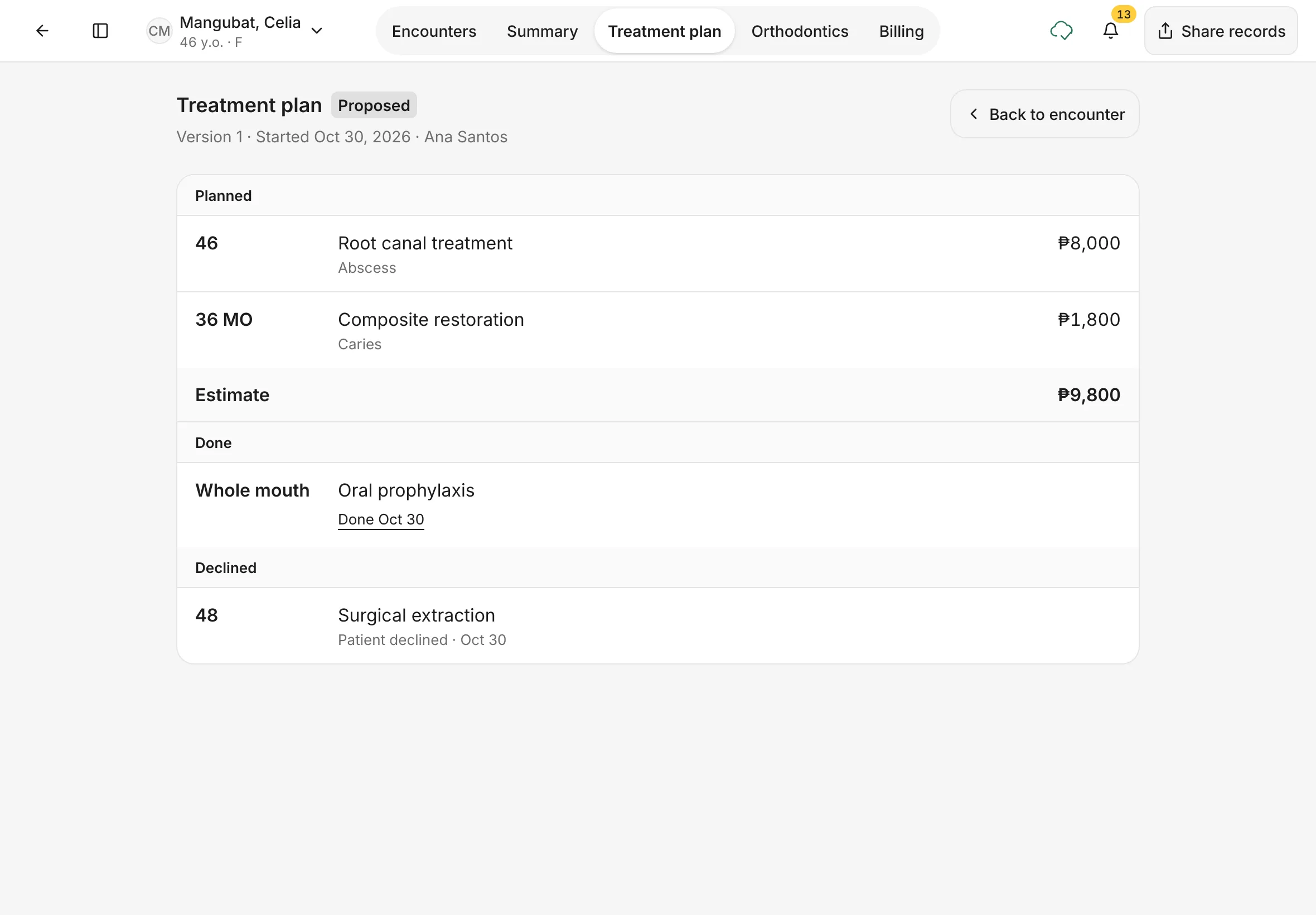
Tap Estimate to open the patient's Treatment plan tab. It shows the plan across all visits:
- the plan's status (Proposed) and when it started
- Planned work with the condition it treats, and the Estimate
- Done work with the date it was done
- Declined work with the date the patient declined it
Tap Back to encounter to return to the visit.
You can also open it any time from the patient's page: tap the Treatment plan tab.
You should see: Treatment plan · Proposed, with the same Estimate as the Chart list.
5. Take an item off the plan
Use Dismiss… when planned work is no longer needed, was referred to someone else, or was planned twice. It's different from Patient declined, which records that the patient said no.
- Tap ⋯ on the planned row, then Dismiss….
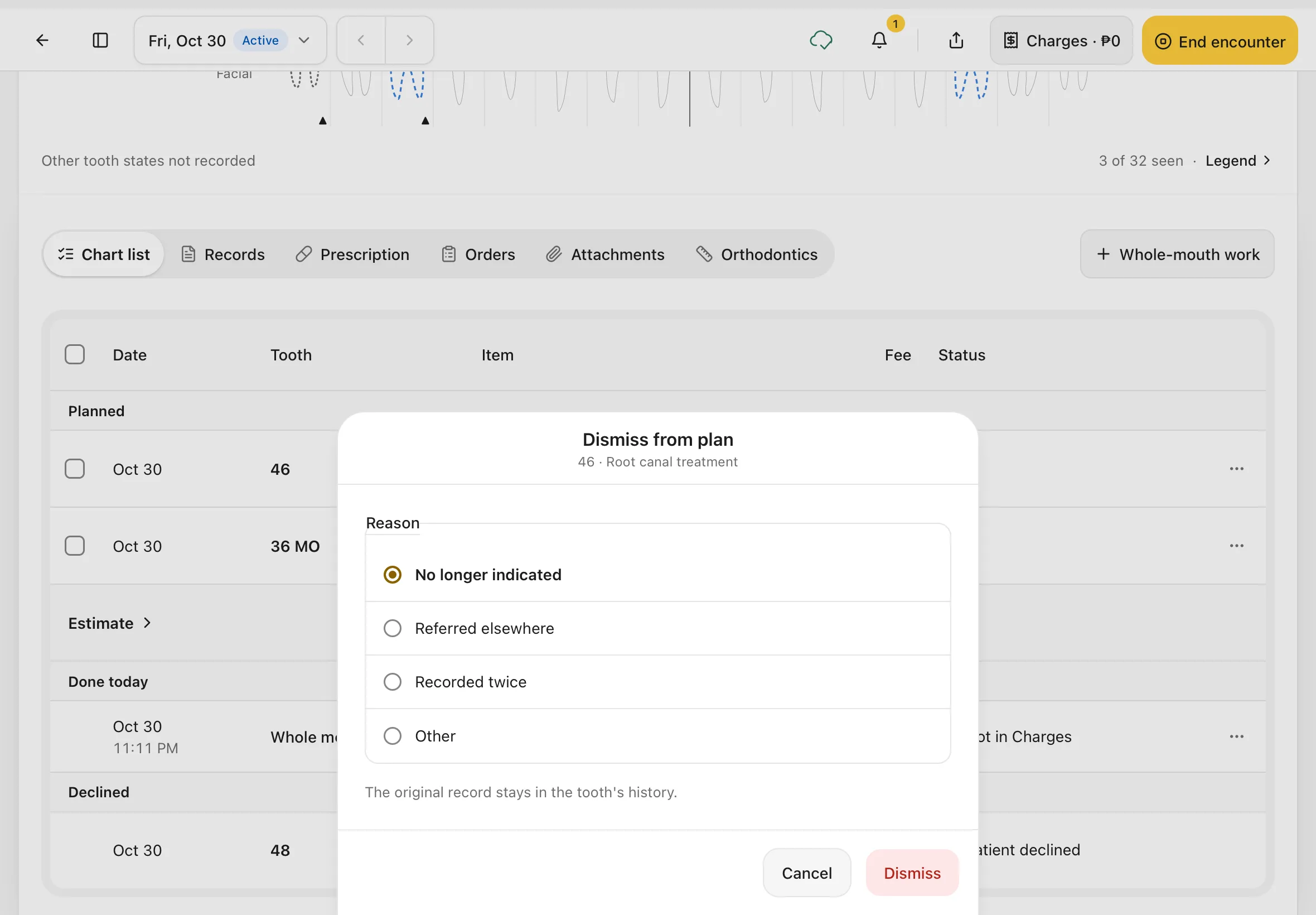
- Under Reason, choose No longer indicated, Referred elsewhere, Recorded twice or Other.
- Tap Dismiss. Tap Cancel to keep it.
You should see: Dismiss from plan, with the tooth and treatment under the title. The item leaves the plan and the Estimate goes down. It still shows in the tooth's history.
6. When the plan is finished
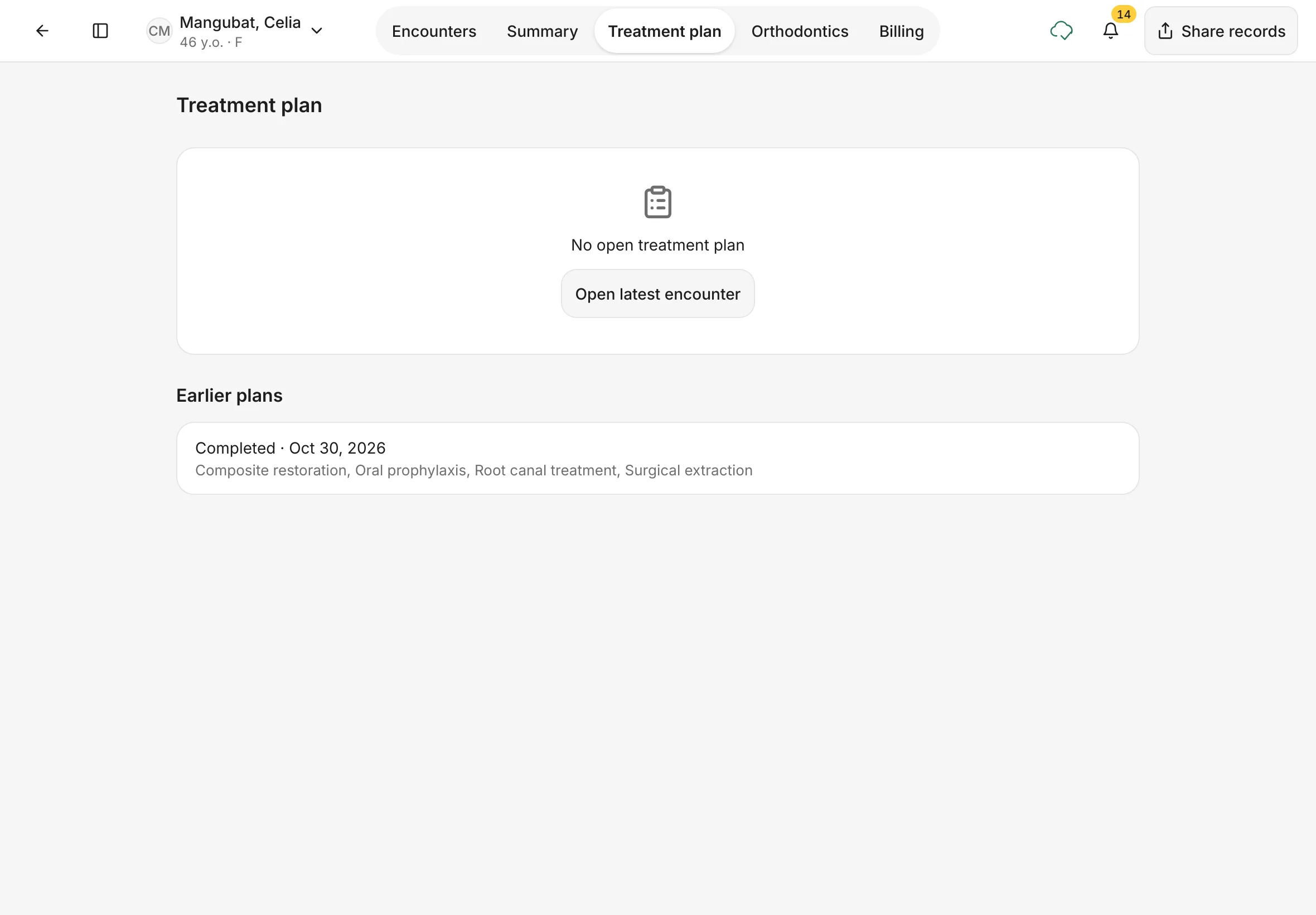
When the last planned item is done, the plan is complete. The Treatment plan tab then says No open treatment plan, and the finished plan moves to Earlier plans with the date it was completed and the work it covered.
New planned work on the chart starts a new plan. Open latest encounter takes you back to the patient's most recent visit.
You should see: No open treatment plan, and the plan under Earlier plans marked Completed.
Tips
Talk the patient through the Estimate
Open the Treatment plan tab on the iPad and go through it with the patient. Each line says which tooth, what work, and the fee.
If something goes wrong
- The Estimate looks too low. Only Planned work is counted. Work done today or declined is not.
- A fee shows ₱0 or the wrong amount. Check the treatment's price in Settings › Services.
Good to know
- The Estimate is a guide. Dentalemon can't print or share a signed estimate yet, and there are no plan versions to compare.
- Planned work isn't charged until it's done.