Finish the visit
Before you start
- Chart the work you did today with Done today on. See Chart teeth.
- Your prices come from Settings › Services.
Steps
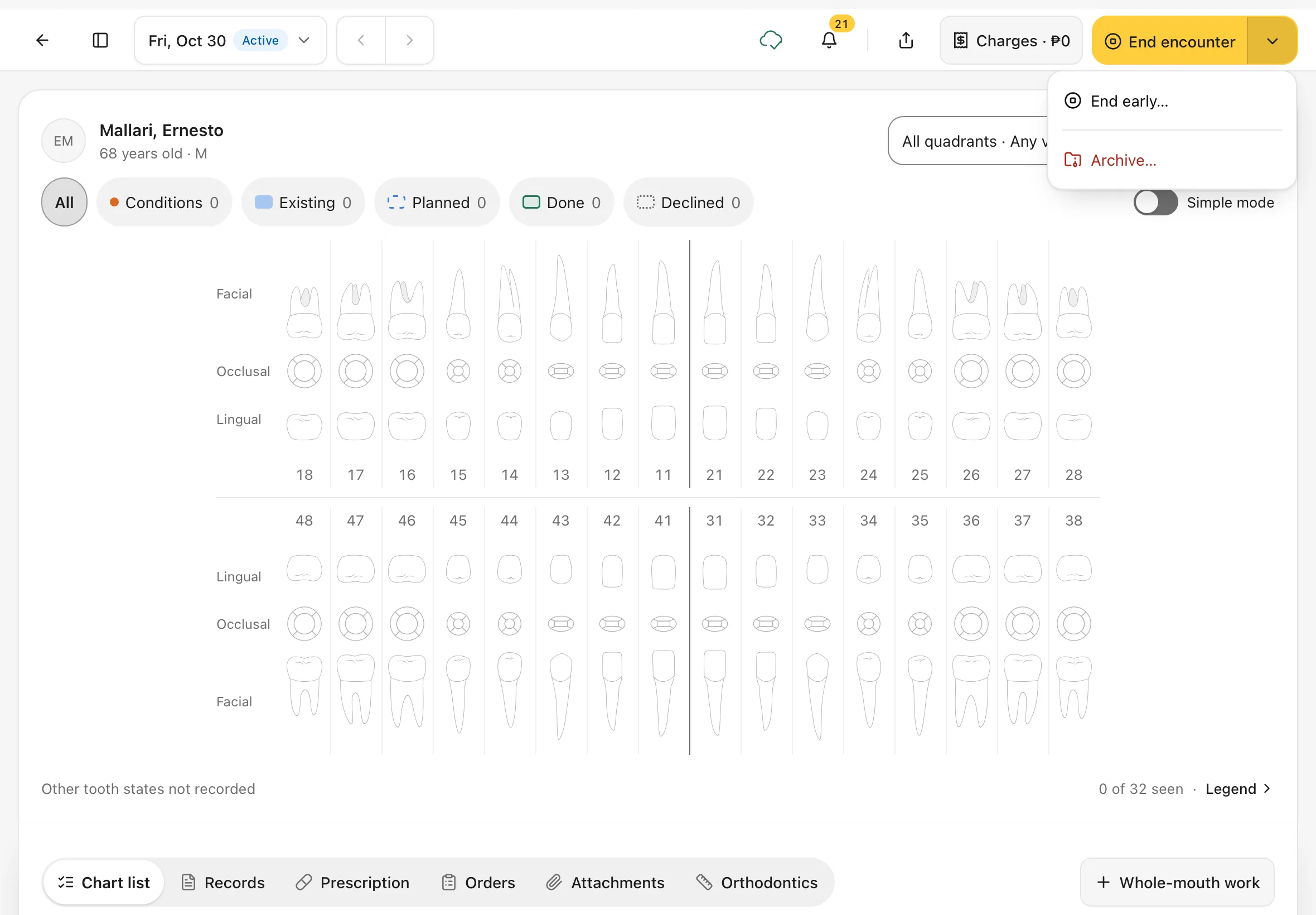
1. Tap End encounter
In the encounter's top bar, tap End encounter.
Beside it, Charges · ₱total shows what this visit has put on the bill so far. The ⌄ on End encounter has other choices. While nothing has been recorded yet, you'll see:
- End early…: the patient left before being seen, was referred or transferred, or declined care. You'll pick the reason.
- Archive…: remove an encounter that was opened by mistake.
If the visit was booked as an appointment, Open appointment is there too. Once you've charted or recorded anything, End early and Archive are gone, and the ⌄ may not show at all.
You should see: Charges · ₱0 and End encounter at the top right. The ⌄ menu shows End early… and Archive… when you open it.
2. Check the End encounter sheet
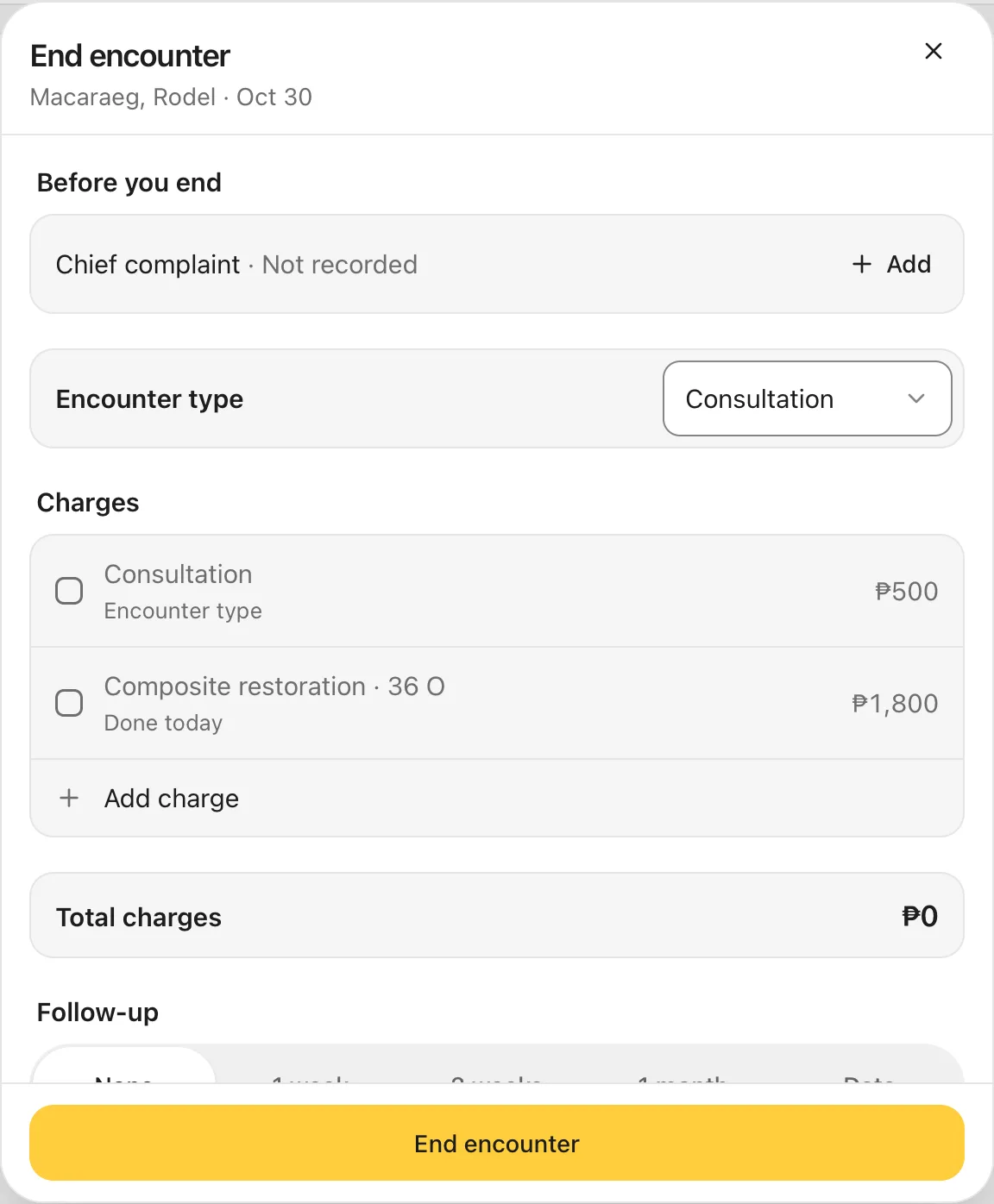
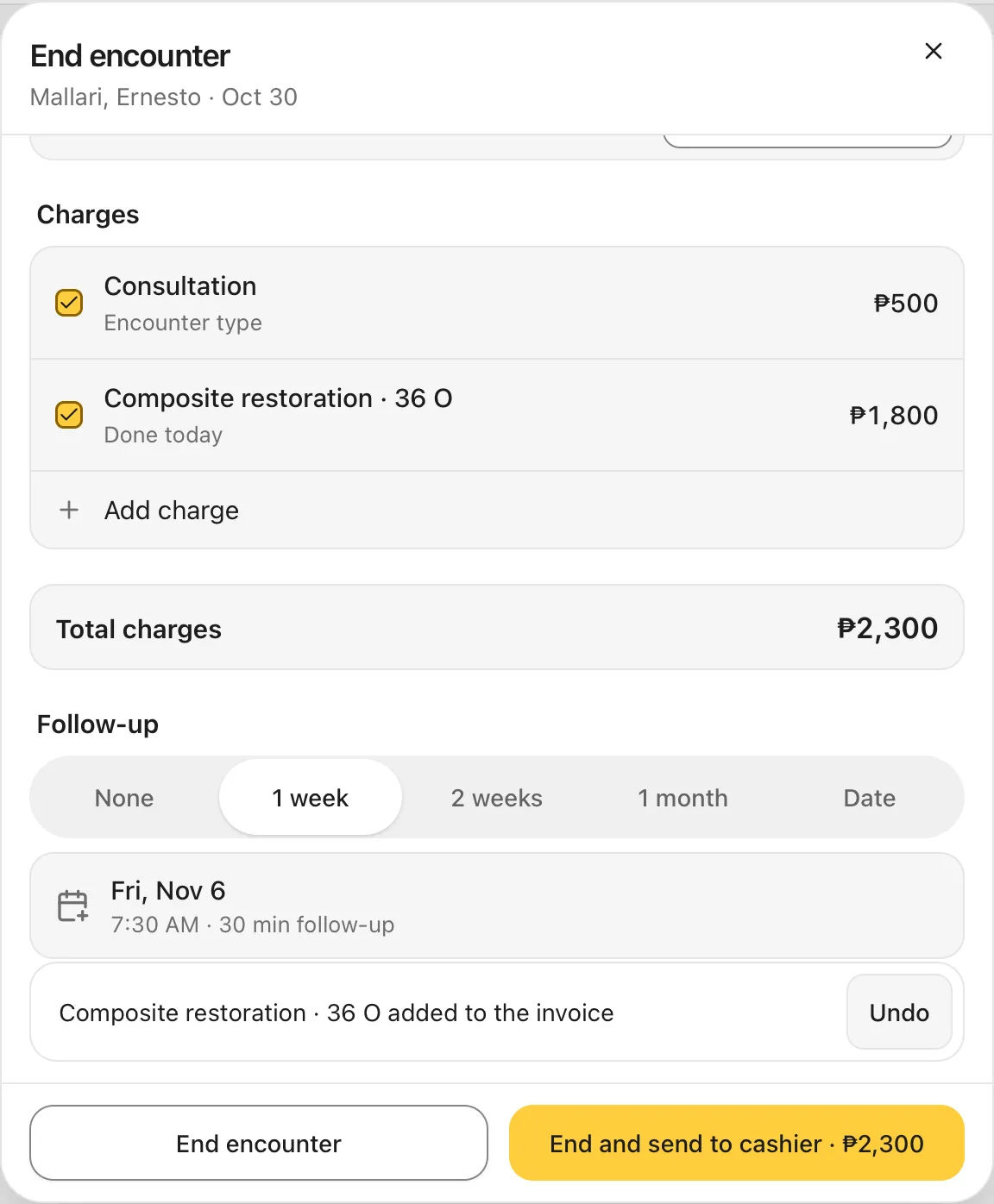
The End encounter sheet shows the patient's name and today's date. Work through it from the top:
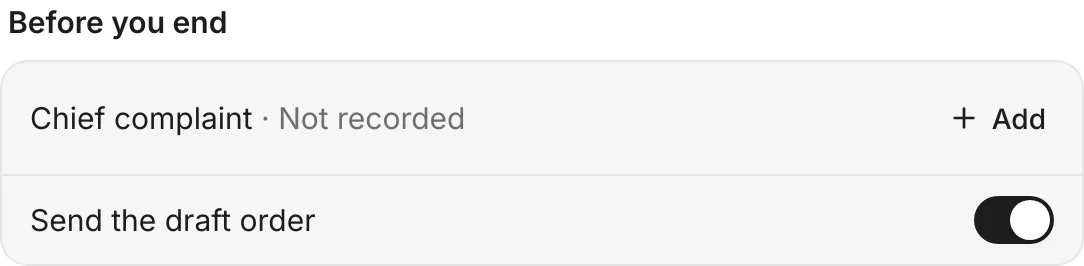
- Before you end lists anything missing, such as Chief complaint · Not recorded. Tap + Add to fill it in now, or carry on: reminders never stop you ending. If the visit has draft orders (for example a lab order you haven't sent), a switch such as Send the draft order appears here. It's on, so ending the visit sends them. If you switch it off, the sheet reminds you that Ending the encounter still finalizes them.
- Encounter type: choose Consultation, Follow-up, Oral prophylaxis, Dental certificate or Procedure. This sets the visit charge.
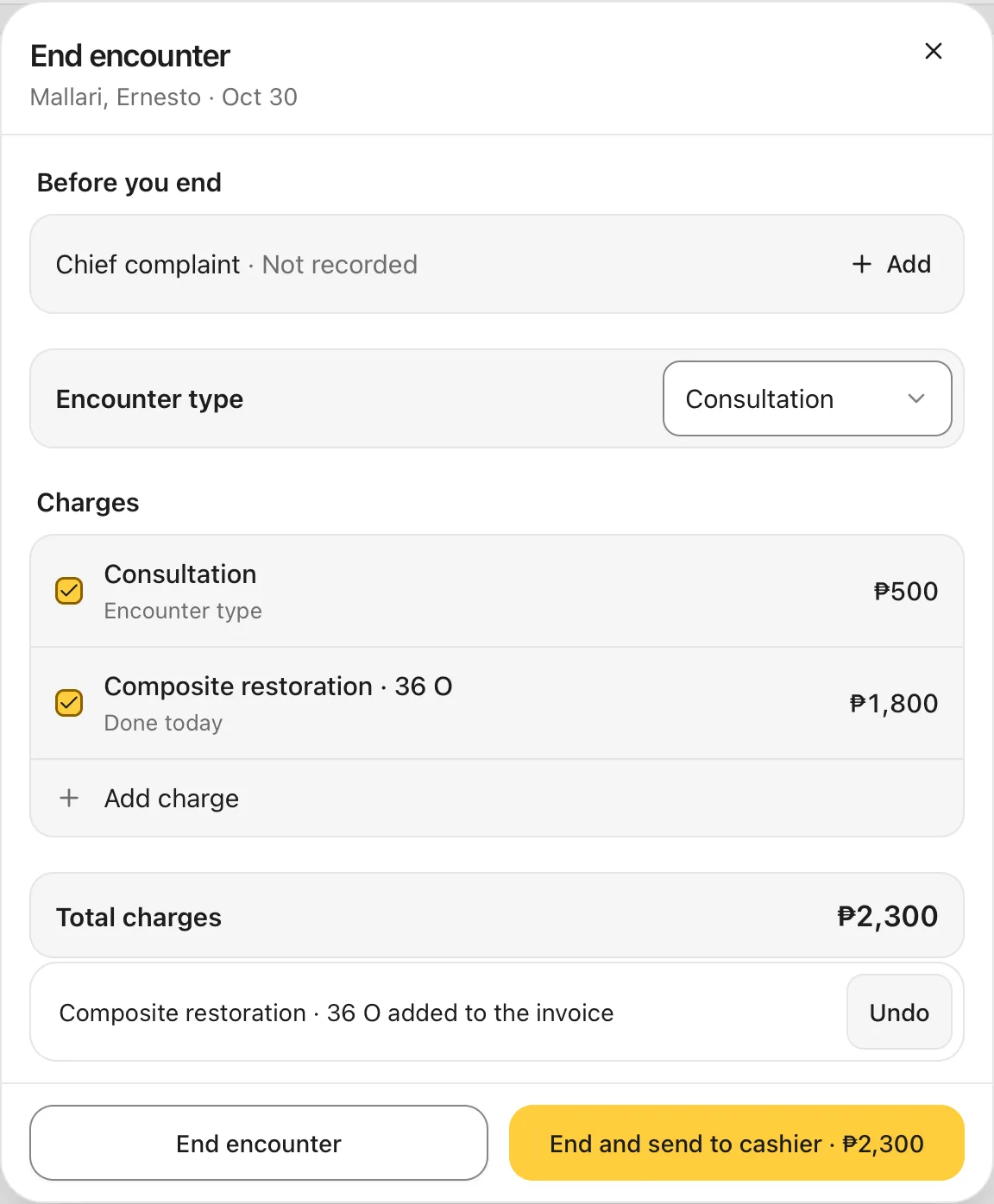
- Charges: the lines start unticked. Tick each line you want to bill: the encounter type and the work you marked Done today. Each tick puts that line on the bill straight away, with Undo. Tap + Add charge for anything else from your price list.
Total charges adds up the ticked lines.
When the sheet opens, nothing is ticked yet, Total charges is ₱0, and the only button at the bottom is End encounter:
You should see: after ticking, the ticked charges and the total, for example ₱2,300.
3. Book the follow-up
Under Follow-up, choose None, 1 week, 2 weeks, 1 month, or Date to pick a day yourself.
Dentalemon finds the first open time and shows it in a card with the day, time and length, for example Fri, Nov 6 and 7:00 AM · 30 min follow-up. The booking is made when you end the encounter, and it then appears in Appointments like any other booking, where you can move or cancel it. See Appointments.
You should see: the follow-up card under the choices.
4. End the encounter
Choose how to end:
- End and send to cashier · ₱total: ends the visit and opens its invoice at the Cashier, ready to collect payment. Use this when the patient pays today. (If your role can't take payments, you land on the patient's Billing tab instead.)
- End encounter: ends the visit without sending the bill. You stay on the chart.
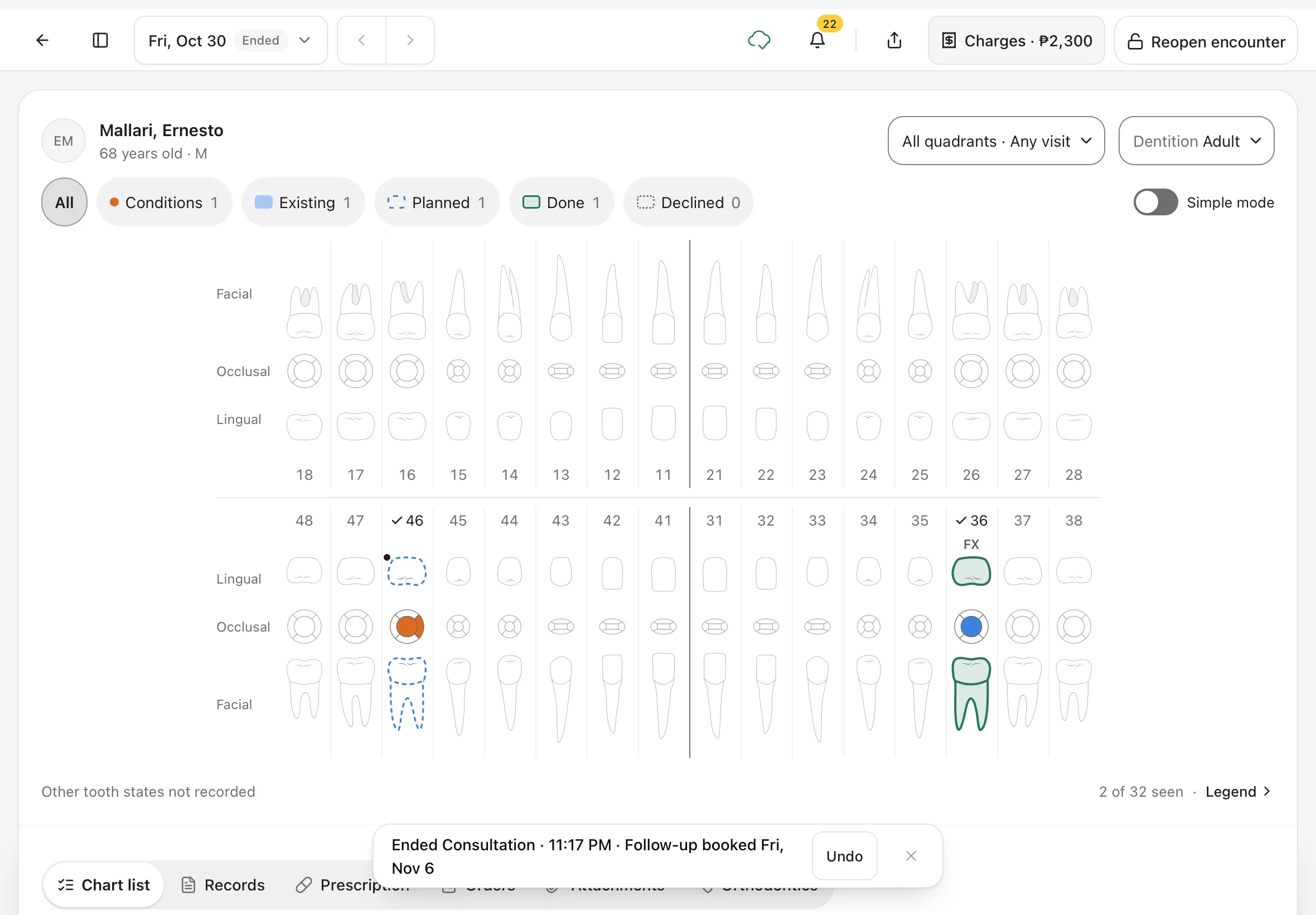
After End encounter, the chart becomes view only and the date pill at the top says Ended. A message confirms the encounter type, the time and the follow-up, with Undo. The top right now shows Reopen encounter, and Charges shows the bill's total. Tap Charges to see the bill.
You should see: Ended at the top and a message that starts with Ended and the encounter type (for example Ended Consultation, or Ended Encounter if you didn't choose a type), then Follow-up booked.
5. Reopen if you need to
If you ended the visit too soon, tap Reopen encounter at the top right. You can only reopen today's encounters.
You should see: the date pill says Active again, and the top right shows End encounter.
6. End a visit early
Use End early… when the visit didn't really happen, before you've recorded any care. It's only in the ⌄ menu until you start charting.
- Tap ⌄ beside End encounter, then End early….
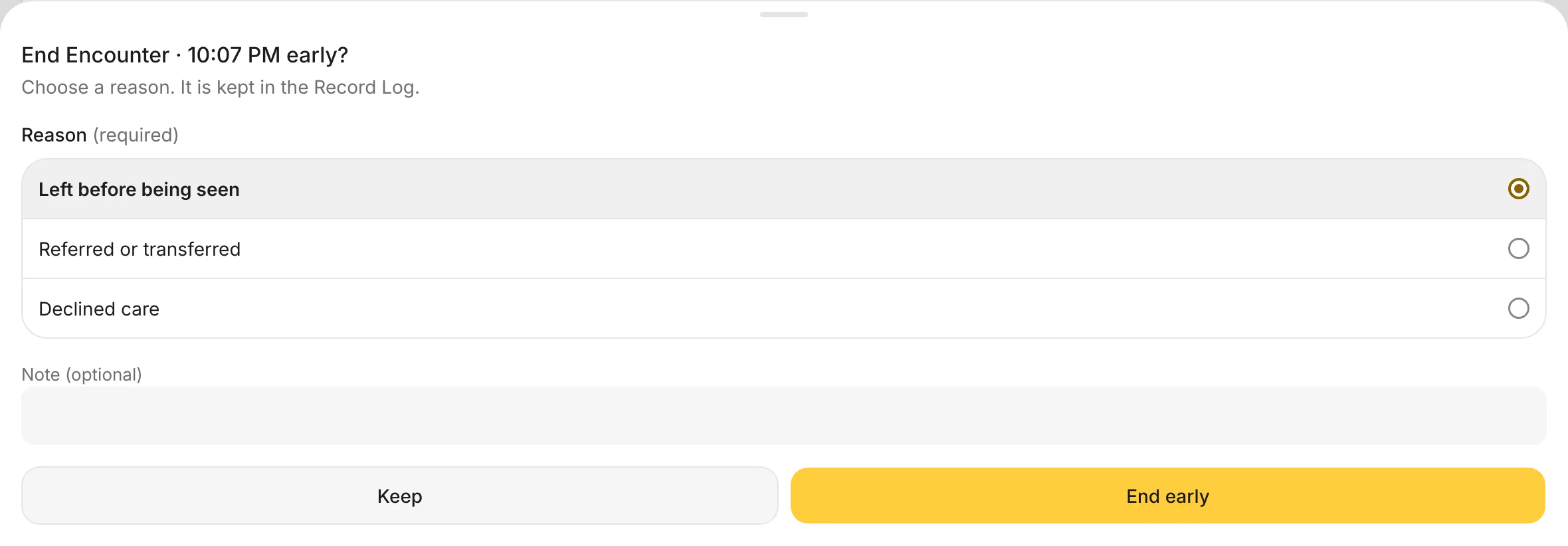
- Choose why: Left before being seen, Referred or transferred or Declined care.
- Add a note if you want, then tap End early. Tap Keep to go back without ending.
You should see: End Encounter · time early? with the reason list and your choice marked. The encounter then ends. For Left before being seen and Declined care, the visit's unpaid charges are cleared too.
7. Archive an encounter opened by mistake
If you started an encounter for the wrong patient, or by accident, and nothing has been recorded in it, you can archive it.
- Tap ⌄ beside End encounter, then Archive….
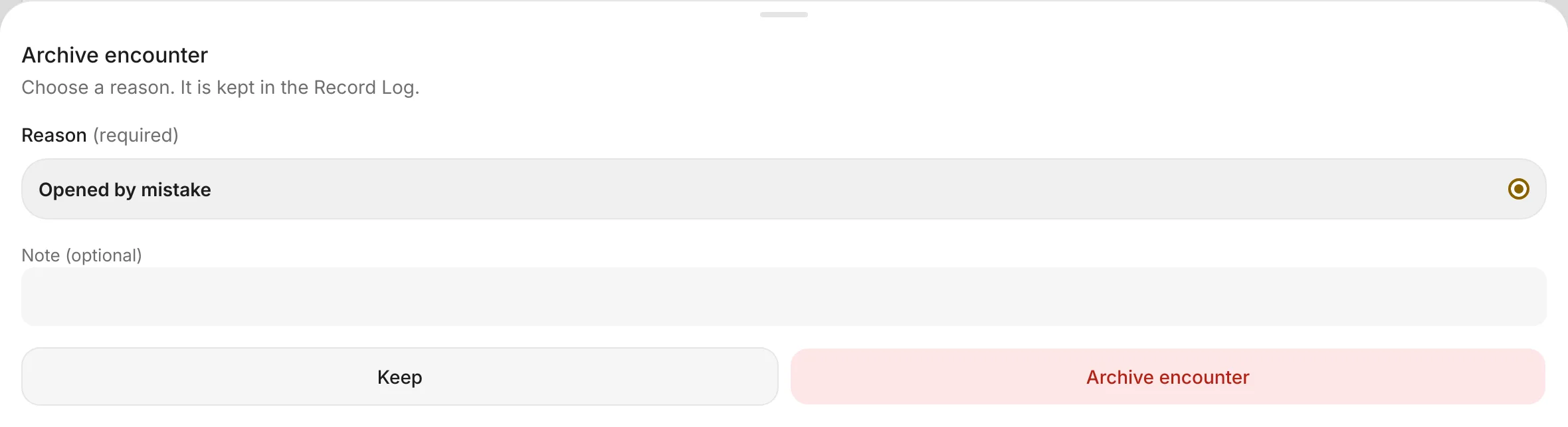
- Choose the reason Opened by mistake. Add a note if you want.
- Tap Archive encounter, or tap Keep to leave it.
You should see: Archive encounter with the reason and the Archive encounter button.
An archived encounter disappears from the patient's list of visits. To bring it back, open Settings › Encounter. Under Archived encounters (below Sign-off), find it with Search patients and tap Restore.
Tips
End and send to cashier
If the patient pays before leaving, always use End and send to cashier. The bill then shows up straight away at the Cashier. See Charges and the Cashier.
If something goes wrong
- The total is ₱0. Tick the charges you want to bill.
- Your work isn't listed under Charges. It was charted as planned. Go back to the chart and use Mark done, or tap + Add charge.
- Ending is blocked by a diagnosis. Your clinic has turned on Require a diagnosis before closing in Settings › Encounter. Record the condition on the chart first.
- A tooth record is still open. Dentalemon shows you the tooth first. Save or discard that record, then finish.
Good to know
- Ending finalizes the visit's records. Undo or Reopen encounter opens the visit again, but records that were finalized stay final. To correct one, use Amend… on it.
- Draft orders can be sent when you end. See Notes, prescriptions, orders and attachments.