Sign in and a first look around
Before you start
- Have your email and password ready.
Steps
1. Sign in
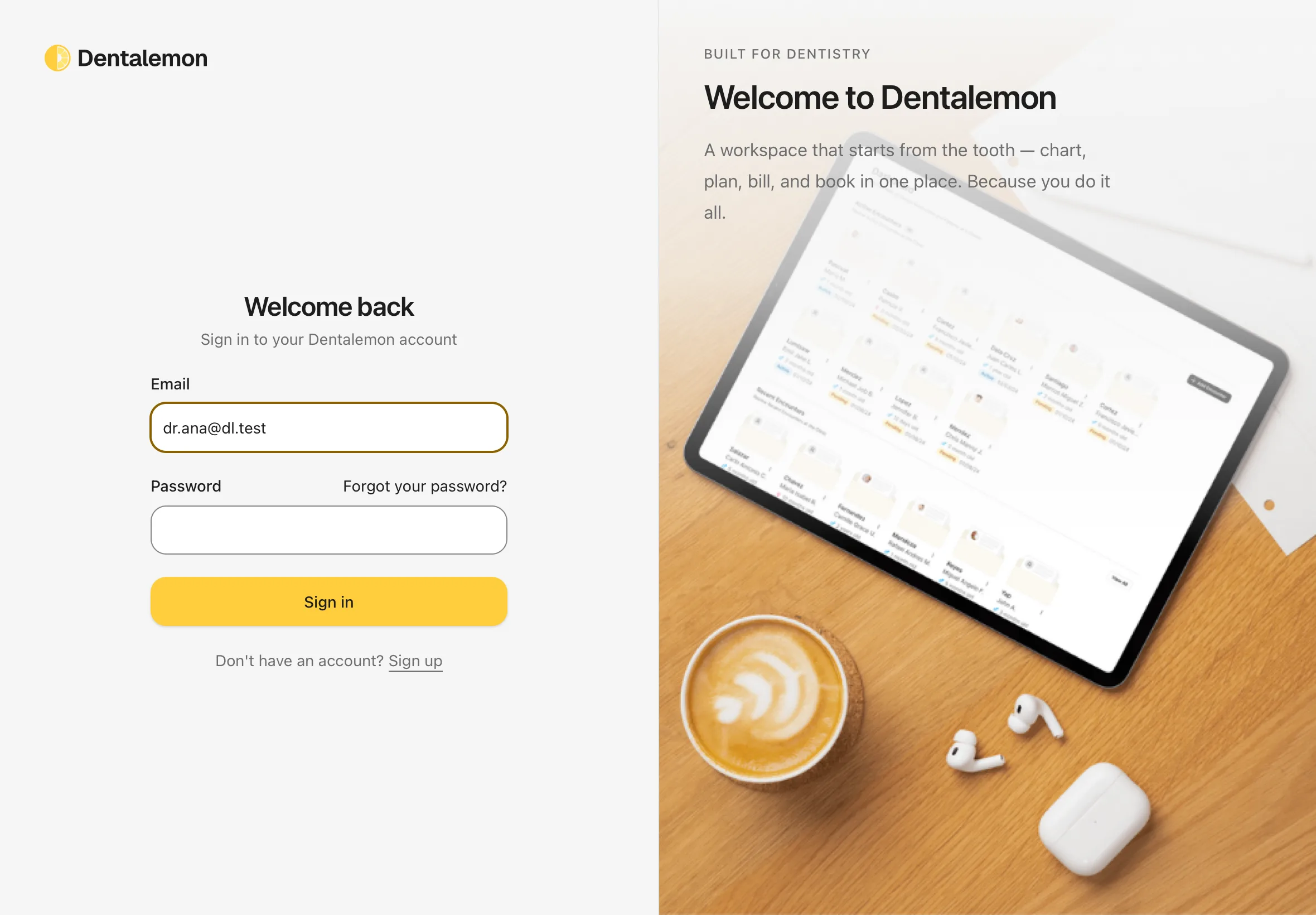
Open Dentalemon. Type your Email and Password, then tap Sign in.
You should see: Welcome back, with your email and password boxes.
2. If you forgot your password
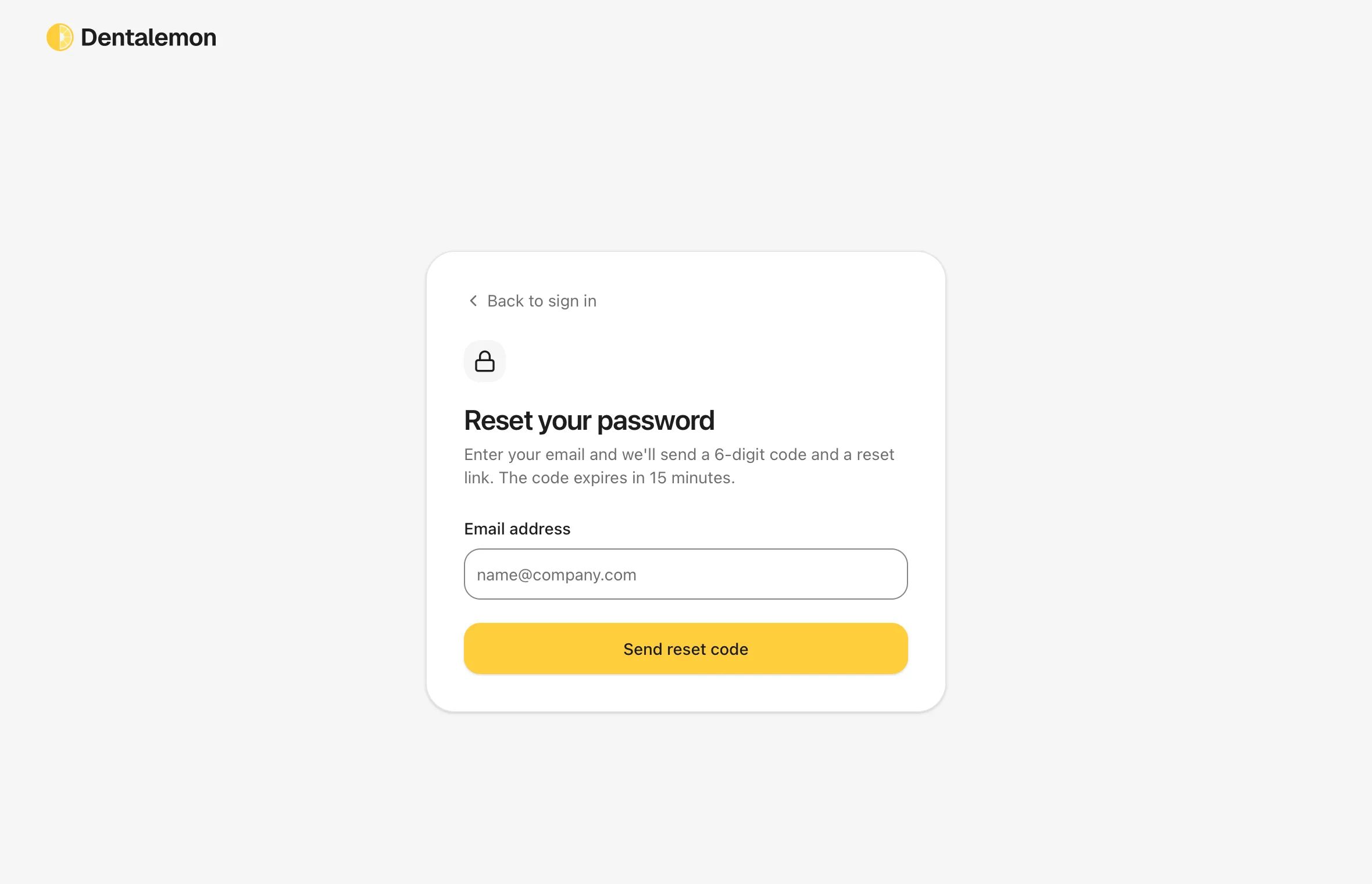
Tap Forgot your password?, next to Password. Type your Email address and tap Send reset code. You get a 6-digit code by email. Type it in to set a new password. The code works for 15 minutes.
You should see: Reset your password. Tap Back to sign in if you remembered it after all.
3. Read the top of Home
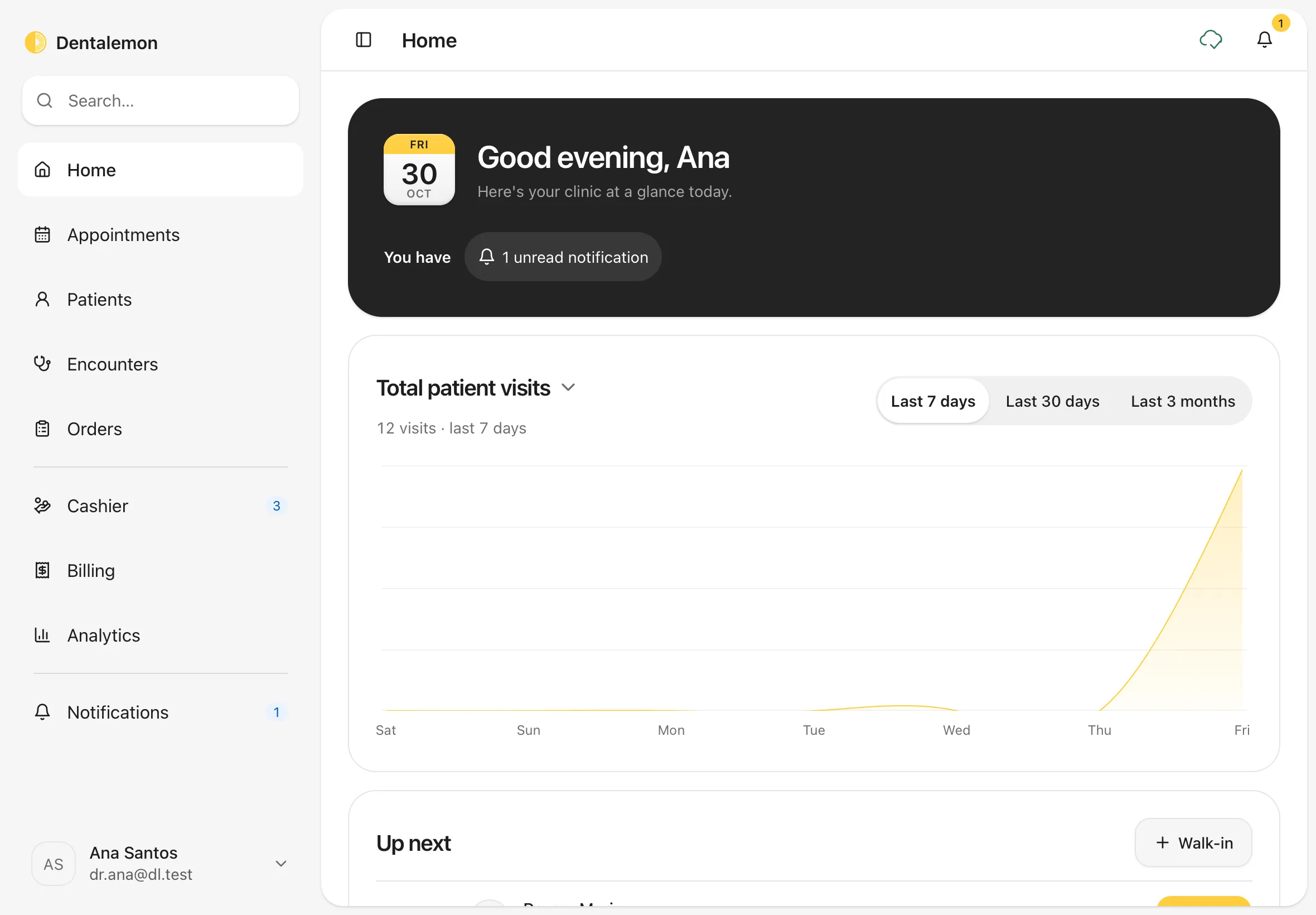
After you sign in, Dentalemon opens Home.
- The dark card greets you with today's date.
- Under it, You have shows what needs you today. Tap a chip to go straight there:
- unread notifications opens your notifications.
- scheduled appointments today opens today's calendar.
- orders to send out opens your draft orders.
- Total patient visits charts your visits. Switch between Last 7 days, Last 30 days and Last 3 months. Tap the title to see other charts, such as Orders by type.
You should see: your greeting, the You have chips, and the visits chart.
Note
A chip only shows when there's something to do. If you have no appointments today, that chip is hidden.
4. See who's up next
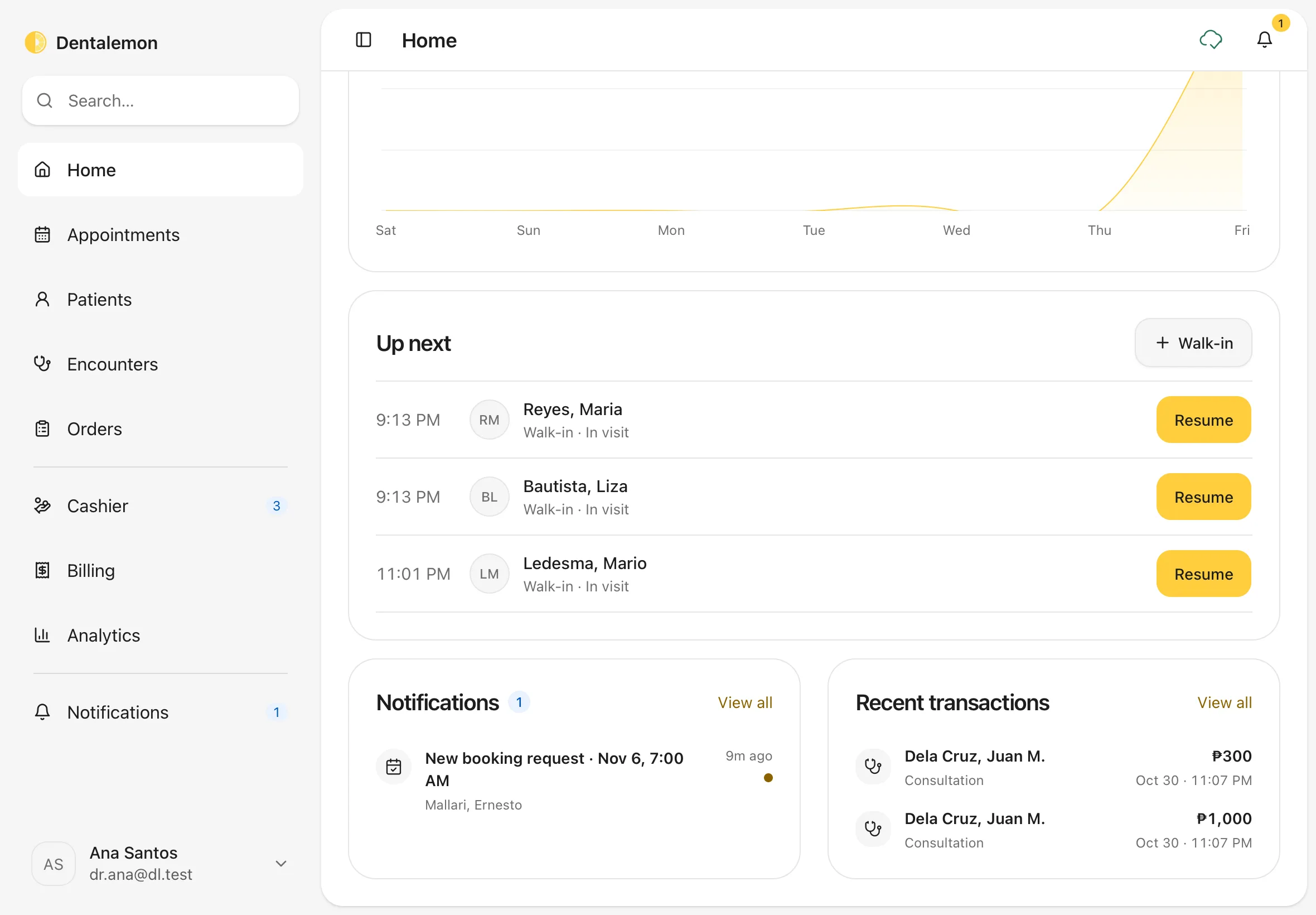
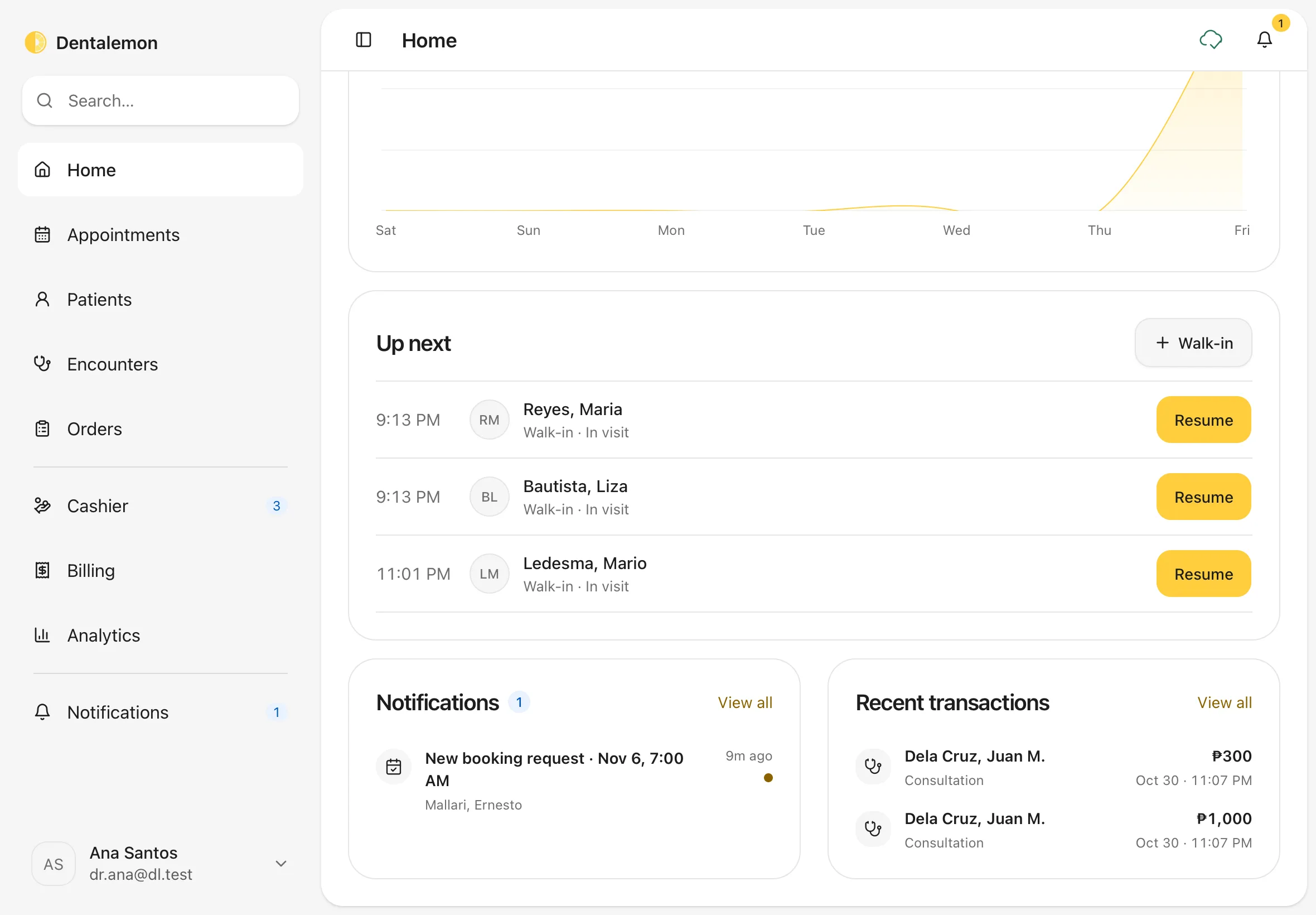
Scroll down to Up next. It lists today's patients: visits under way first, then bookings in time order. Three rows show at a time; slide your finger on the card to see the rest.
- Start encounter checks a booked patient in and opens their visit, in one tap.
- Resume goes back to a visit that is still open.
- Check in shows for a booking whose patient isn't in your patient list yet.
- Walk-in is for a patient who came in without an appointment.
Under each name is the visit reason and, when it applies, In visit, Not confirmed or Checked in.
You should see: each patient's time, name, visit reason and a button.
Seeing a walk-in patient:
- Tap Walk-in. Dentalemon opens Patients.
- Search for the patient. If they're new, add them (see Find or add a patient).
- On the patient's page, tap Start encounter.
The visit then appears in Up next with the label Walk-in, so you can come back to it with Resume.
5. Check notifications and recent payments
Keep scrolling. Notifications shows the newest alerts, such as lab results and booking requests. Recent transactions shows the latest payments. Tap View all on either card to see the full list.
You should see: the two cards side by side.
6. Find your way with the sidebar
The sidebar on the left is always there. It has three groups:
- Home, Appointments, Patients, Encounters, Orders: your daily clinic work.
- Cashier, Billing, Analytics: money and numbers.
- Notifications: all your alerts.
A small number next to an item tells you how many things are waiting there. The Search… box at the top finds a patient by name: type and press Enter.
To make more room on the screen, tap the panel button at the top left, next to the page title. It hides the sidebar. Tap it again to bring the sidebar back.
You should see: the page you tapped, with its name at the top and its item highlighted in the sidebar.
7. Check the icons at the top right
Two icons sit at the top right of every page.
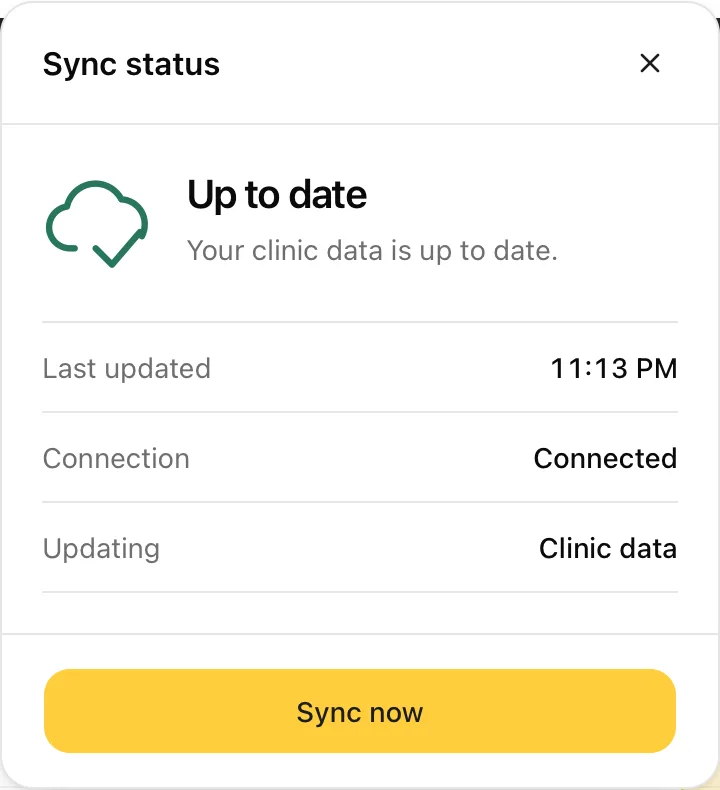
- The cloud shows whether your data is up to date. A tick means everything is saved and current. Tap it to open Sync status:
- Up to date: your clinic data is current.
- You're offline: there's no internet connection. Changes you make can't reach the clinic until you're back online.
- Couldn't finish syncing: the update didn't go through. Tap Try again.
- Sync now fetches the latest changes straight away.
- The bell opens your notifications. The number on it is how many you haven't read. See Notifications and Analytics.
You should see: Sync status, with Last updated, Connection and a Sync now button.
8. Open your account menu
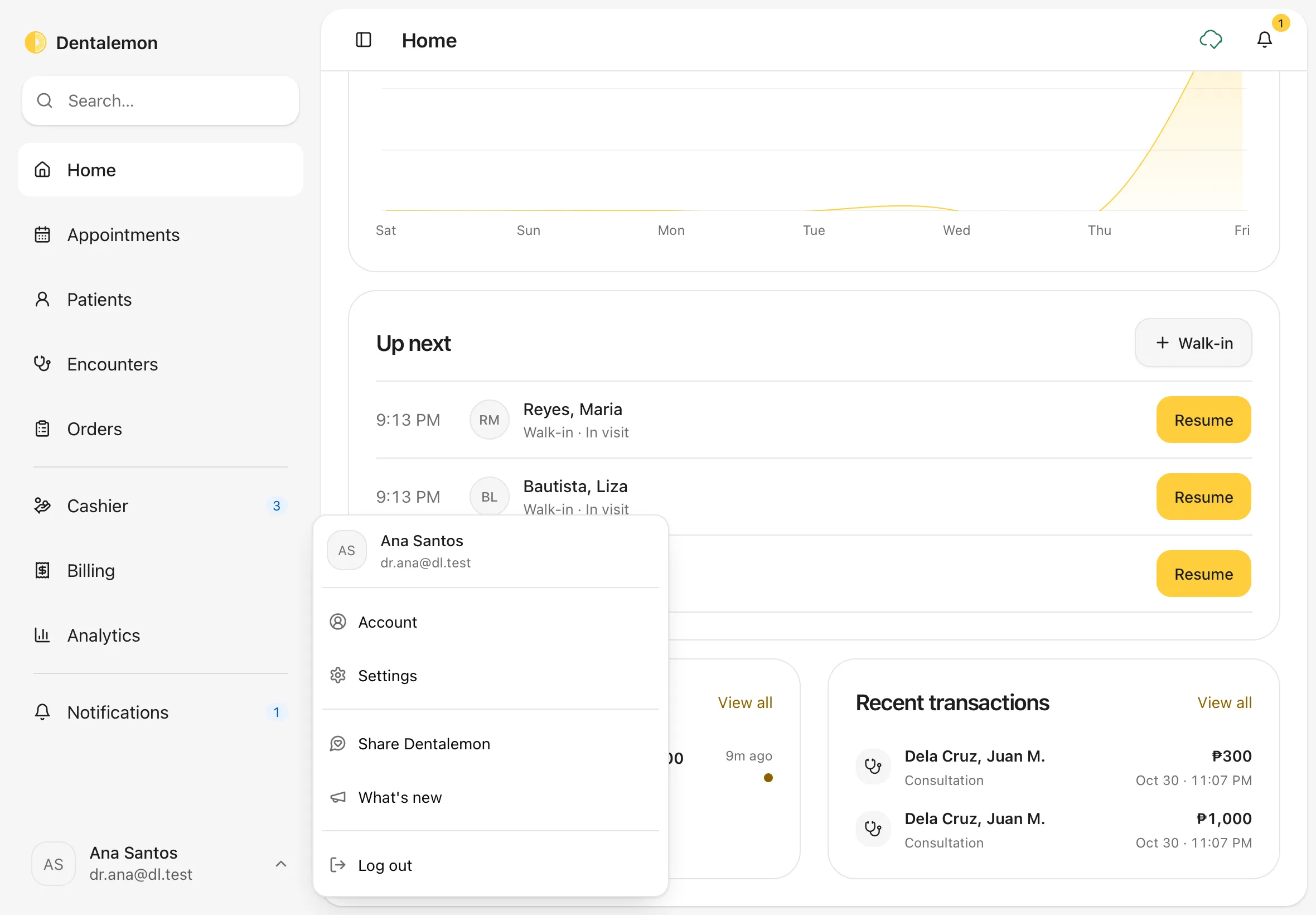
Tap your name at the bottom of the sidebar.
- Account: your profile, photo and signature.
- Settings: your clinic, prices, formats and more. See Settings basics.
- Share Dentalemon: your clinic's invite code for colleagues. It's marked Coming soon.
- What's new: the latest changes to Dentalemon.
- Log out: sign out on this device.
You should see: the menu open above your name.
9. See what's new
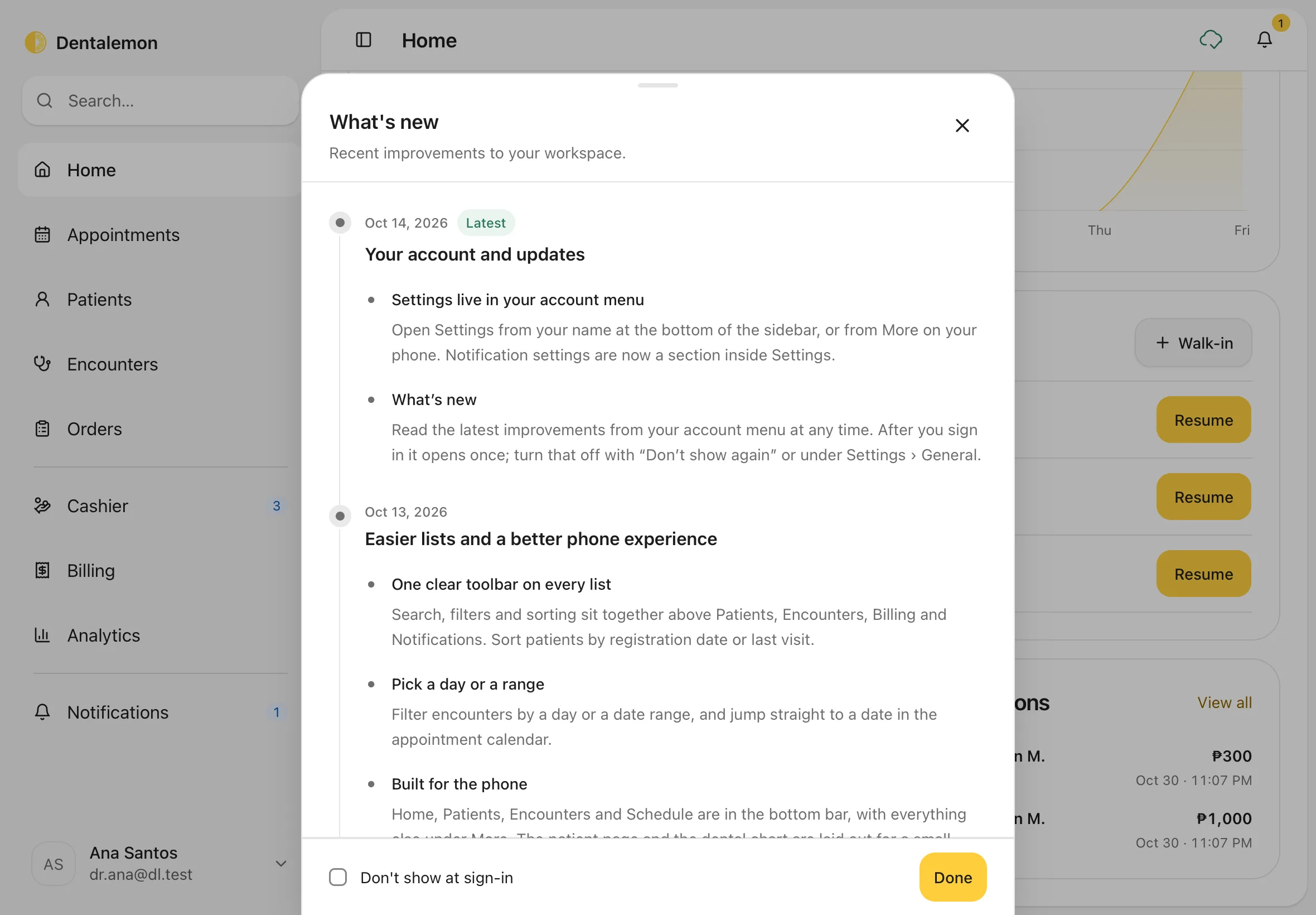
In the account menu, tap What's new. It lists recent improvements, newest first. Tap Done to close it.
What's new also opens by itself once after you sign in, when there's something new. Tick Don't show at sign-in if you'd rather open it yourself. You can switch it back on in Settings › General › Show updates at login.
You should see: What's new, with the newest change marked Latest.
10. Log out
In the account menu, tap Log out. Dentalemon signs you out on this device and shows the sign-in page.
You should see: Welcome back, the sign-in page.
Log out when you hand the iPad to someone else, or at the end of the day on a shared iPad.
Using Dentalemon on an iPad
- Tap to choose. There's no need to double-tap.
- Scroll inside a panel or list by sliding your finger on it. Long forms and lists scroll on their own, while the top bar stays put.
- Sheets are panels that slide up from the bottom or in from the side, such as Collect payment. Close one with ✕, Cancel or Close, or by dragging its handle down.
- Landscape or portrait: both work. In portrait, some panels, like the tooth panel, open as sheets instead of sitting beside the page.
- Typing: tap a box to bring up the keyboard. Use the keyboard's hide key when you're done.
Tips
Open a different page after sign-in
If you'd rather start each day on Appointments or Patients, change Open after sign-in in Settings › General.
If something goes wrong
You can't sign in. Check for a typo in your email and that Caps Lock is off. Still stuck? Use Forgot your password?. A What's new window appears after you sign in. That's normal after an update. Read it, then close it to reach Home.