Sign up and set up your clinic
Before you start
- Use the email you want to sign in with every day. You can't change it later in the app yet.
- Invite code is marked Coming soon. Leave that box empty.
Steps
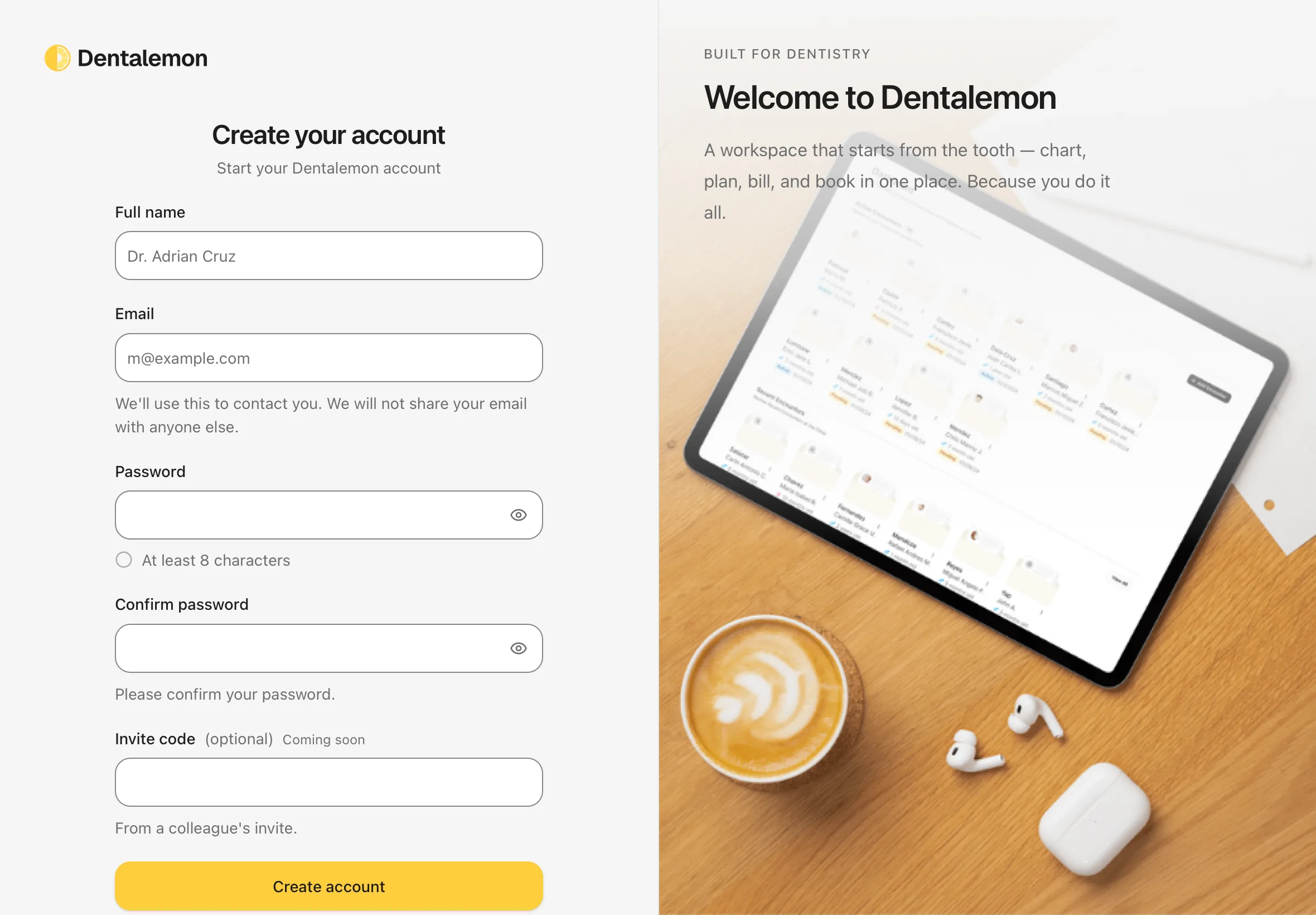
1. Open the sign-up page
Open Dentalemon and tap Sign up under the sign-in box.
You should see: Create your account, with boxes for your name, email and password.
2. Fill in your details
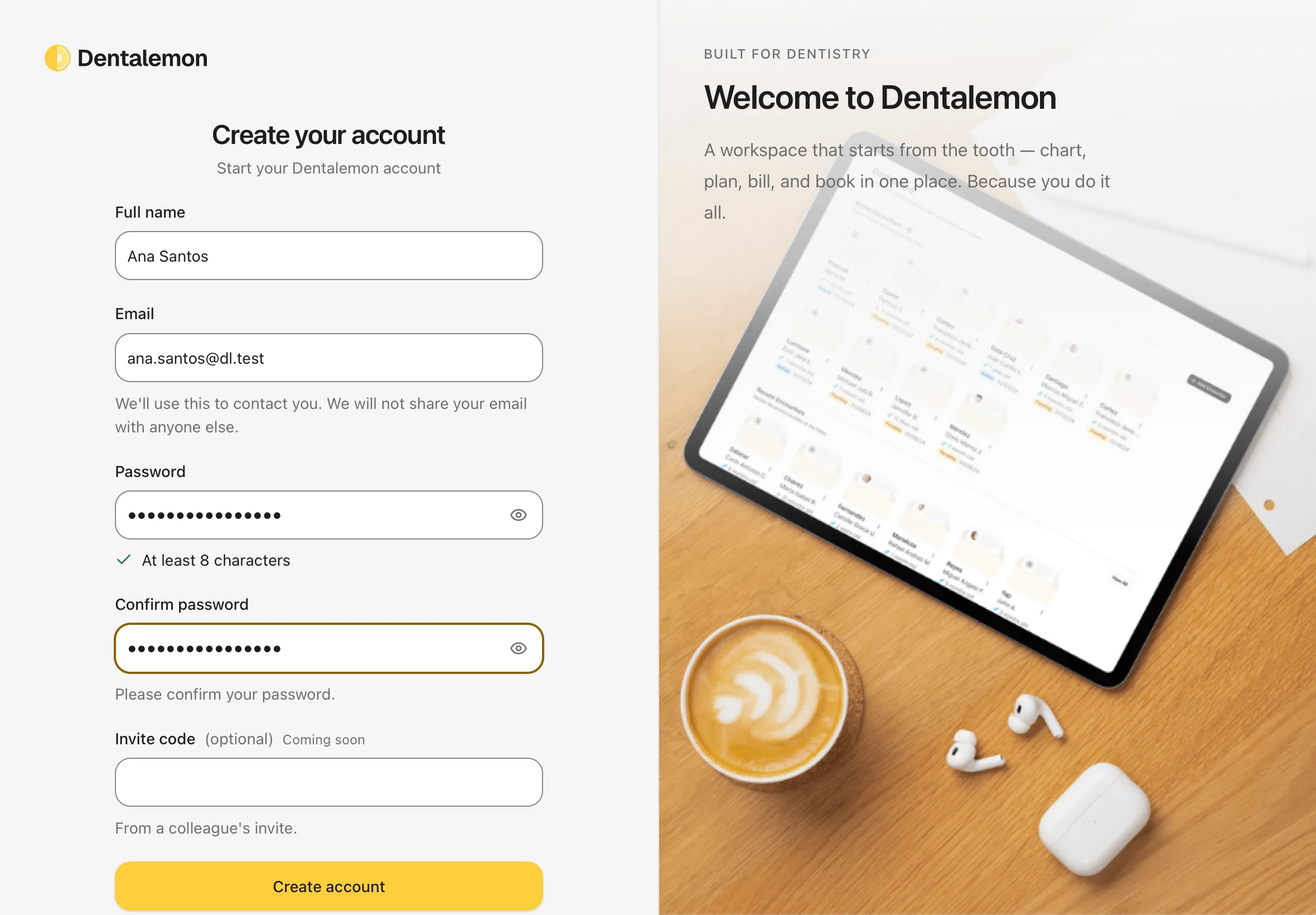
- Full name: your name as patients know you, for example Ana Santos.
- Email: your work email.
- Password: at least 8 characters. A green check appears next to At least 8 characters when it's long enough.
- Confirm password: type the same password again.
- Invite code (optional): marked Coming soon. Leave it empty.
You should see: every box filled in and the password rule checked.
3. Create your account
Tap Create account.
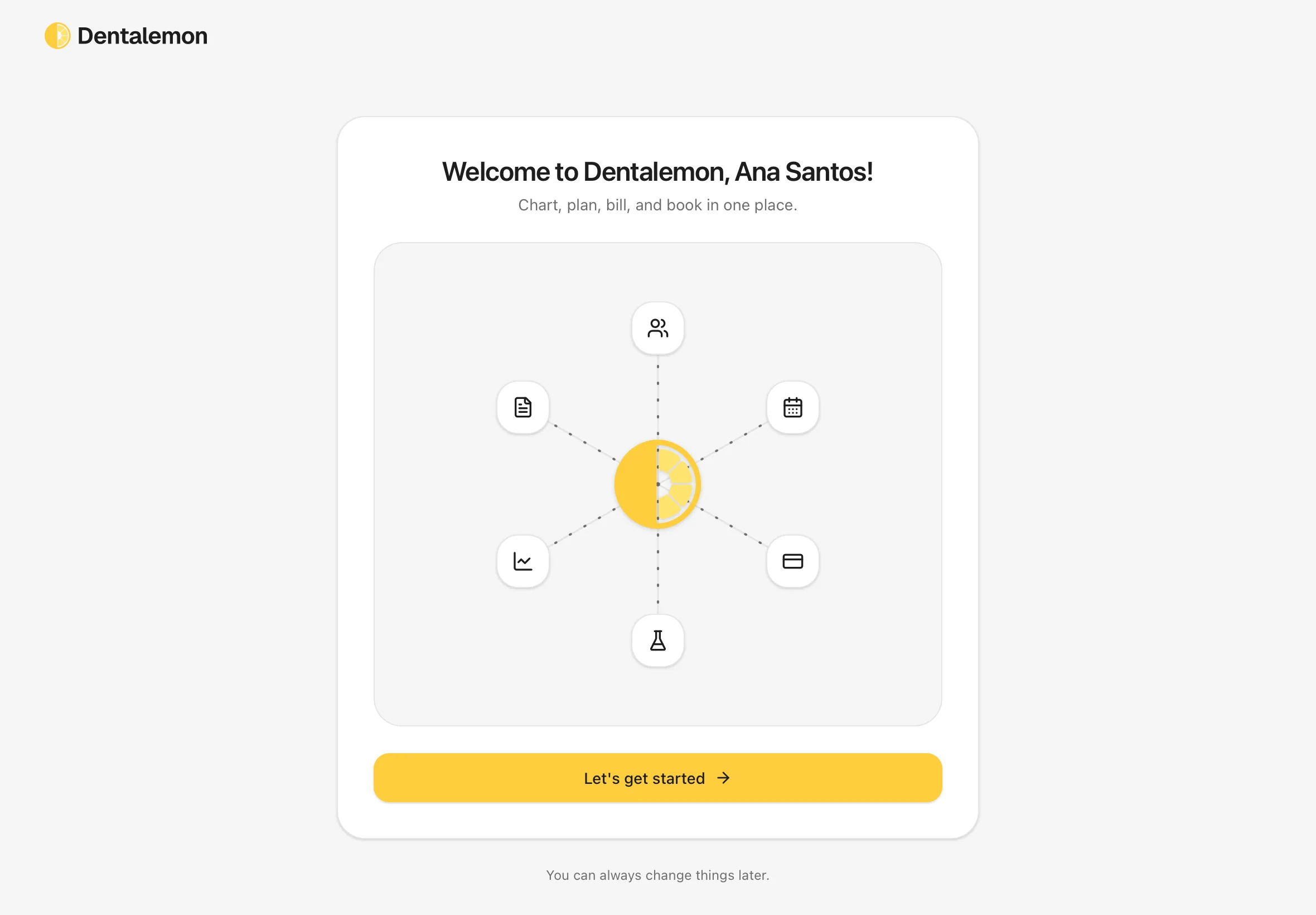
You should see: Welcome to Dentalemon, your name! and a Let's get started button.
4. Get started
Tap Let's get started.
You should see: Set up your clinic, with an empty Clinic name box.
5. Name your clinic
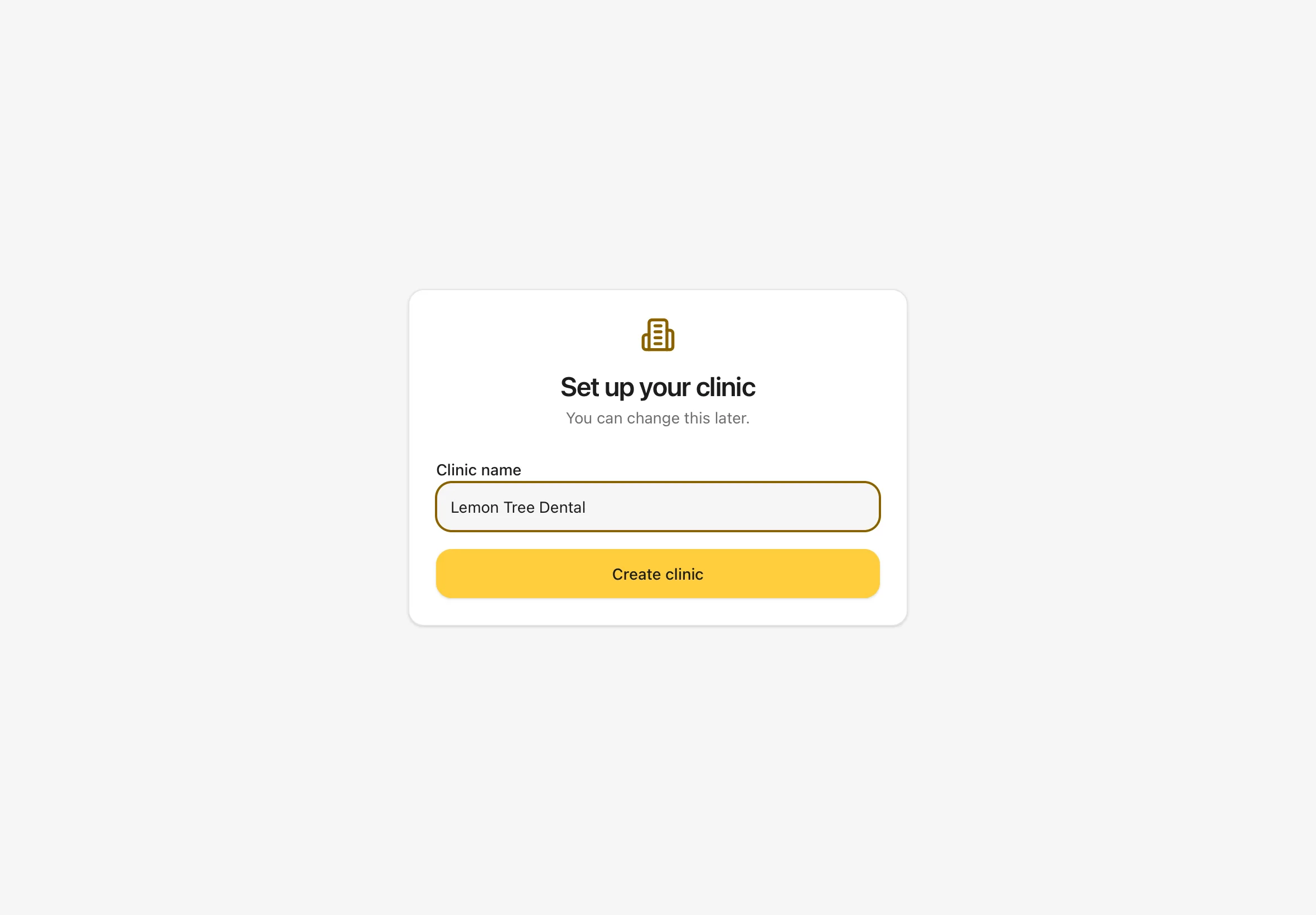
Type your clinic's name in Clinic name.
You should see: your clinic name in the box, and a Create clinic button.
6. You're in
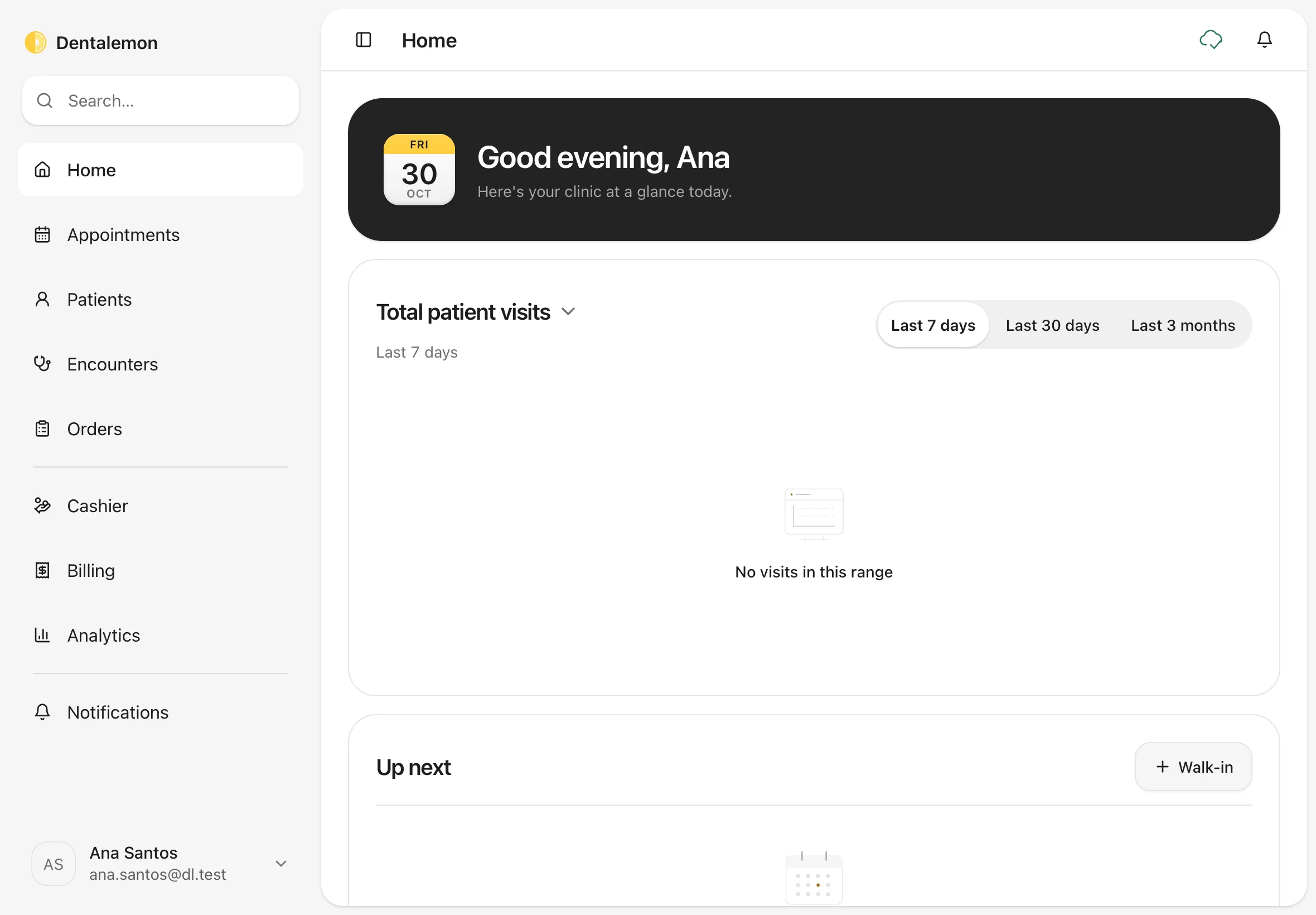
Tap Create clinic. Dentalemon opens Home. A new clinic has no patients or visits yet, so the cards are empty. They fill up as you work.
You should see: a greeting with your first name at the top (Good morning, Good afternoon or Good evening, by the time of day), and the sidebar on the left: Home, Appointments, Patients, Encounters, Orders, Cashier, Billing, Analytics and Notifications.
Tips
Finish your clinic details next
Add your clinic's address, phone and opening hours, and your price list, before you see patients. See Settings basics.
If something goes wrong
You tap Create account and stay on the same page. A box with a problem turns red and shows a message, such as Passwords do not match. or Password must be at least 8 characters. Fix that box and tap Create account again.
Good to know
- Sign-up uses email and password only. There's no Apple or Google sign-in.
- Invite codes aren't used yet. The box under Invite code (optional) says Coming soon.
- You can change this later applies to the clinic name: you can rename it in Settings › Clinic.