Billing and balances
Before you start
- Billing is for looking back and following up. Day-to-day payments happen at the Cashier.
Steps
1. Open Billing
Tap Billing in the sidebar.
You should see: the tabs Transactions, Total sales, Payments due, Accounts receivable and Payment plans, with Transactions open. The cards at the top sum up the period: Collected, Transactions, Average ticket and Voided.
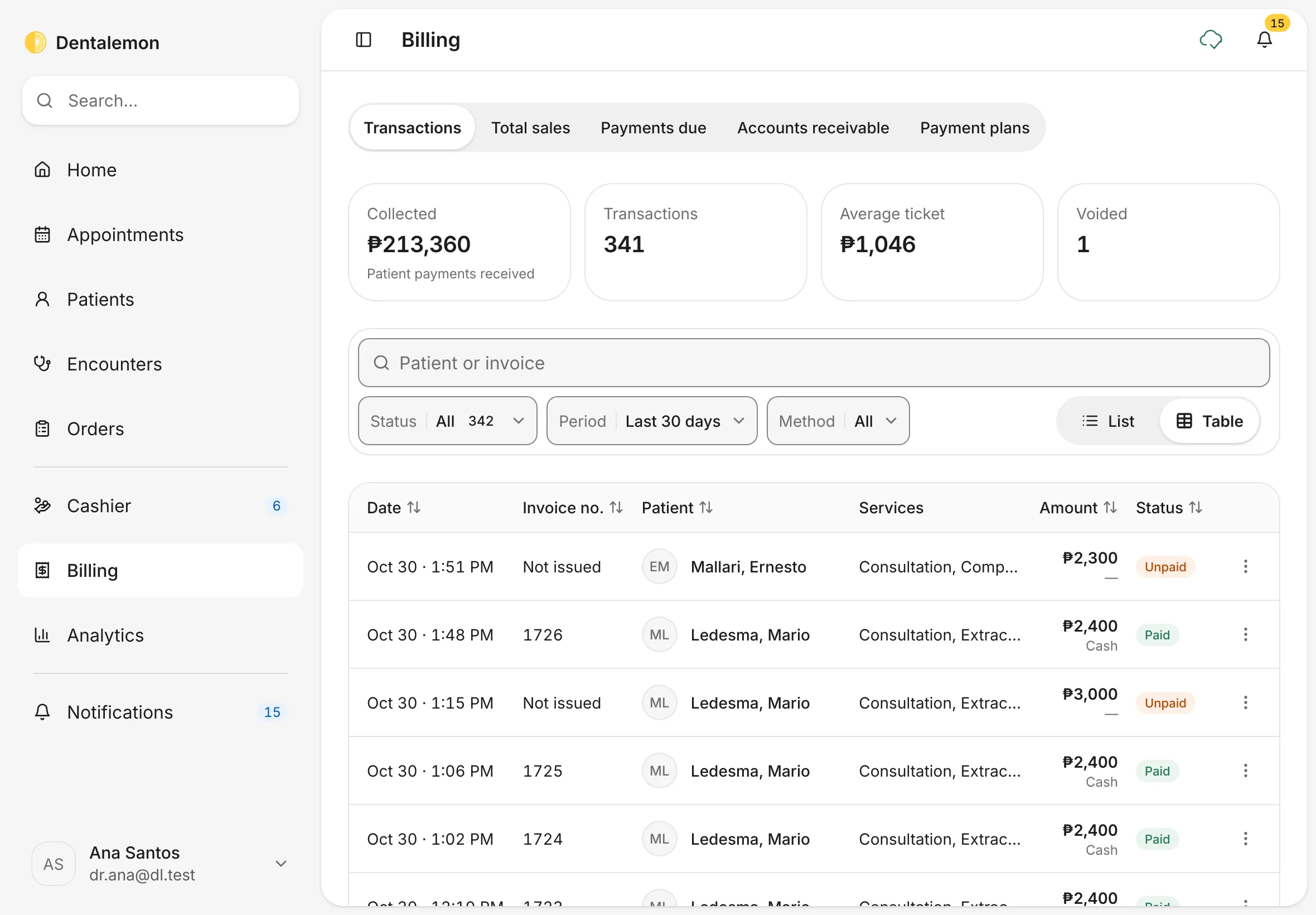
Use the search box (Patient or invoice) and the Status, Period and Method filters to narrow the list. List and Table switch the layout. Tap ⋮ at the end of a row for View invoice, Record payment (while something is unpaid) and View patient.
2. Check your sales
Tap Total sales.
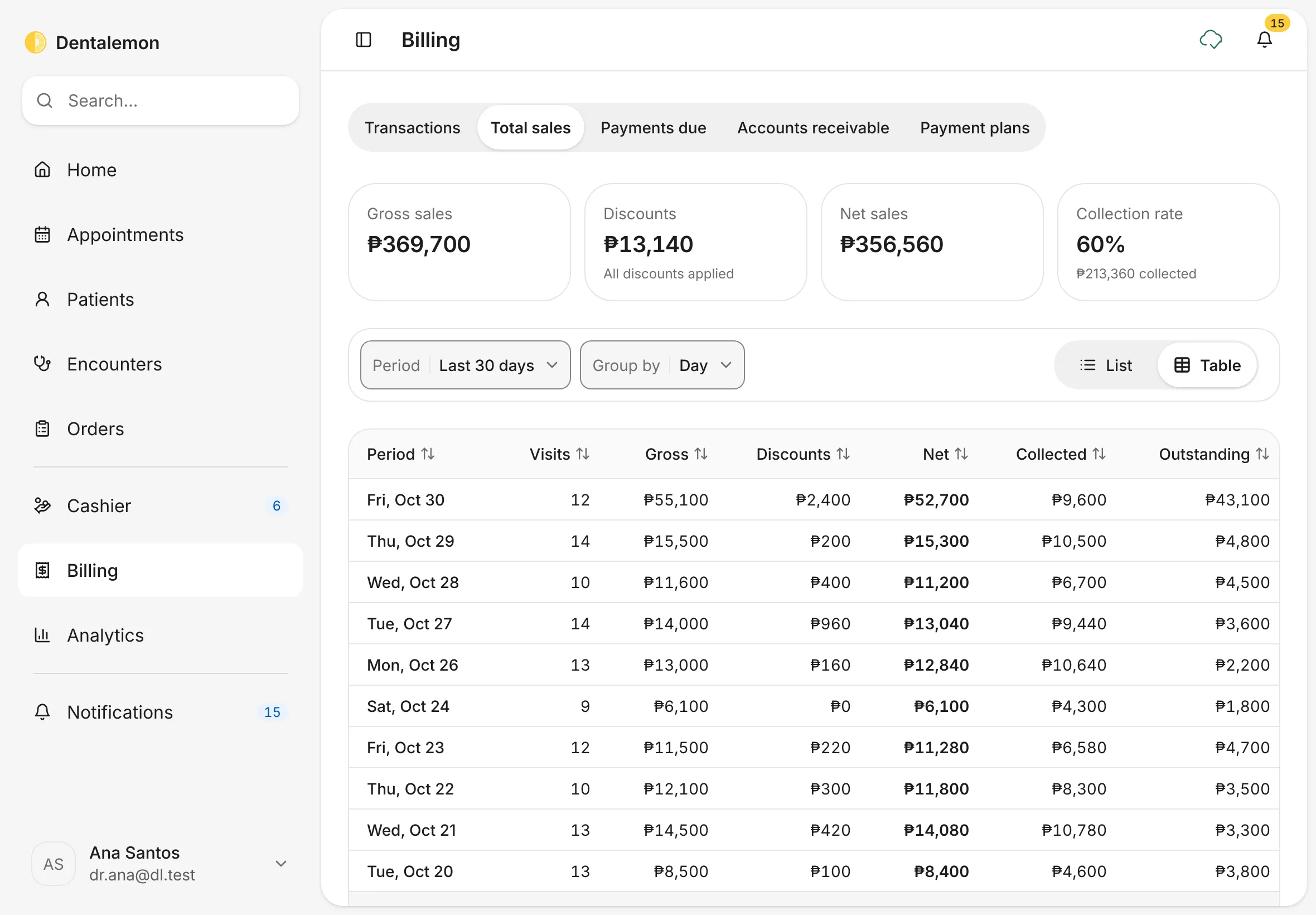
You should see: Gross sales, Discounts, Net sales and Collection rate for the period, then one row per day (or per week or month, with Group by).
3. Follow up unpaid balances
Tap Payments due.
You should see: Total unpaid, Patients owing, Overdue and Average balance at the top, then each patient who owes you: how many invoices are open, what was billed and paid, the Total unpaid, the Earliest unpaid date and the Last payment.
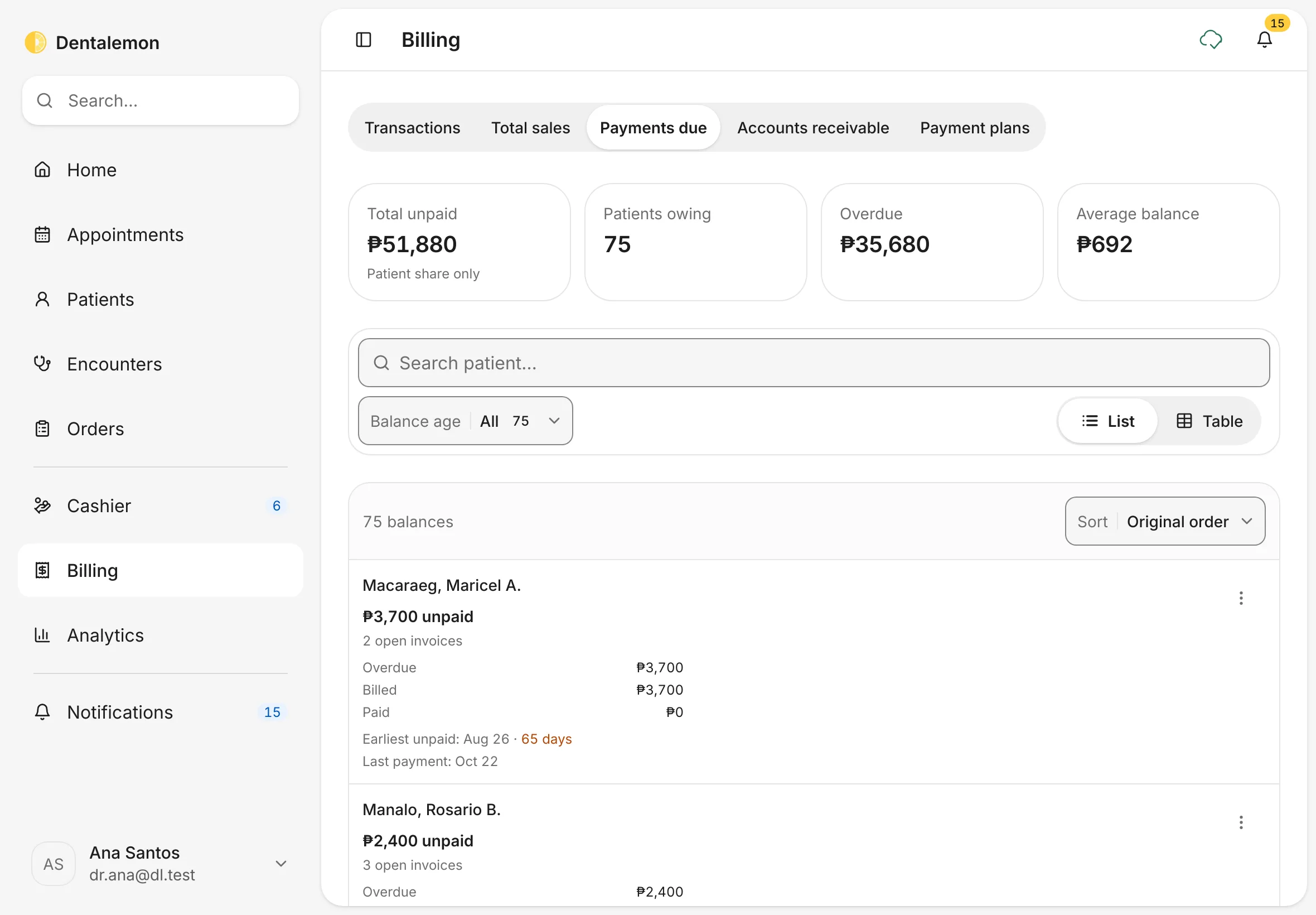
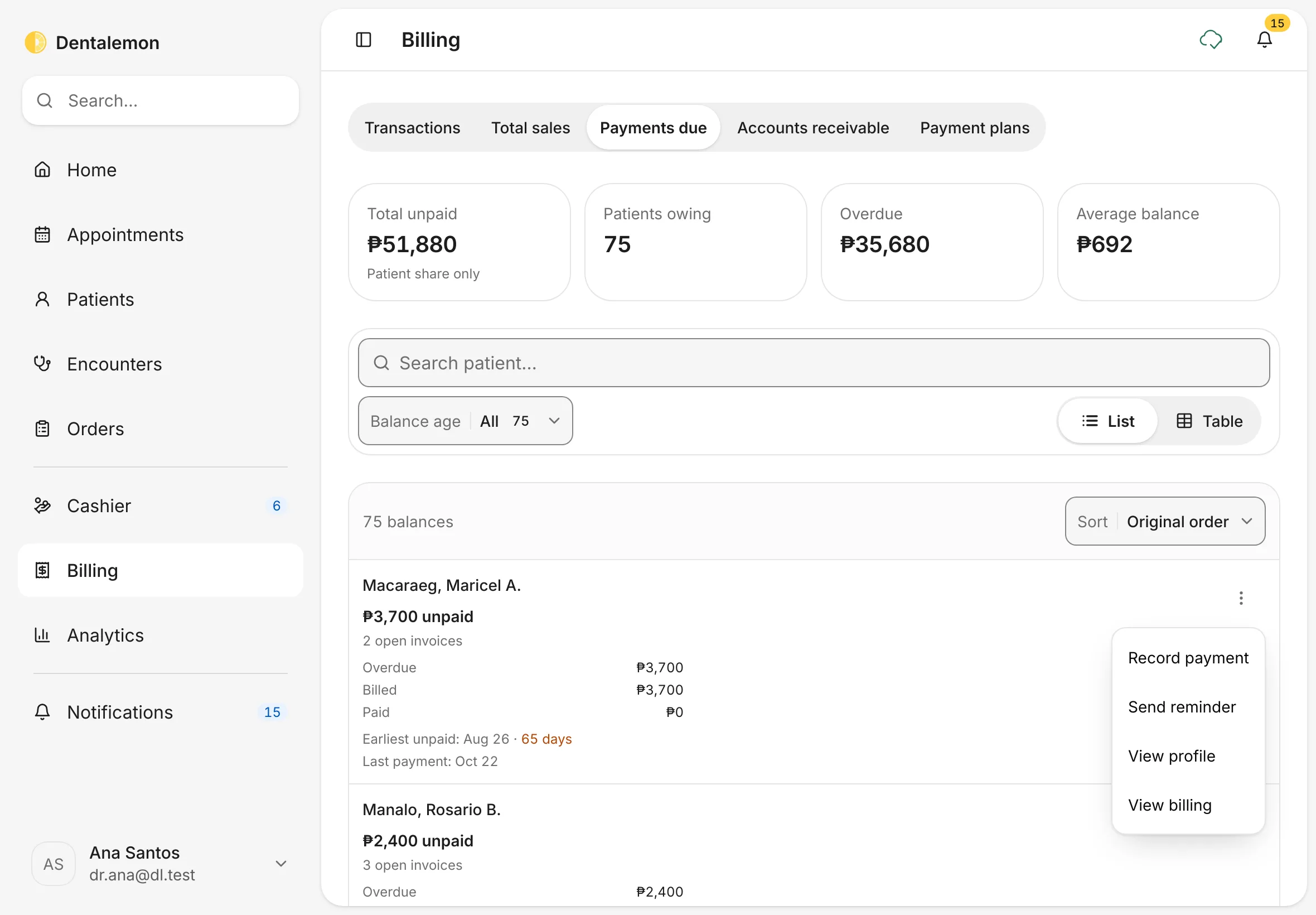
Use Balance age to show only the overdue balances. Tap ⋮ on a patient for Record payment, Send reminder, View profile and View billing.
4. Record a payment
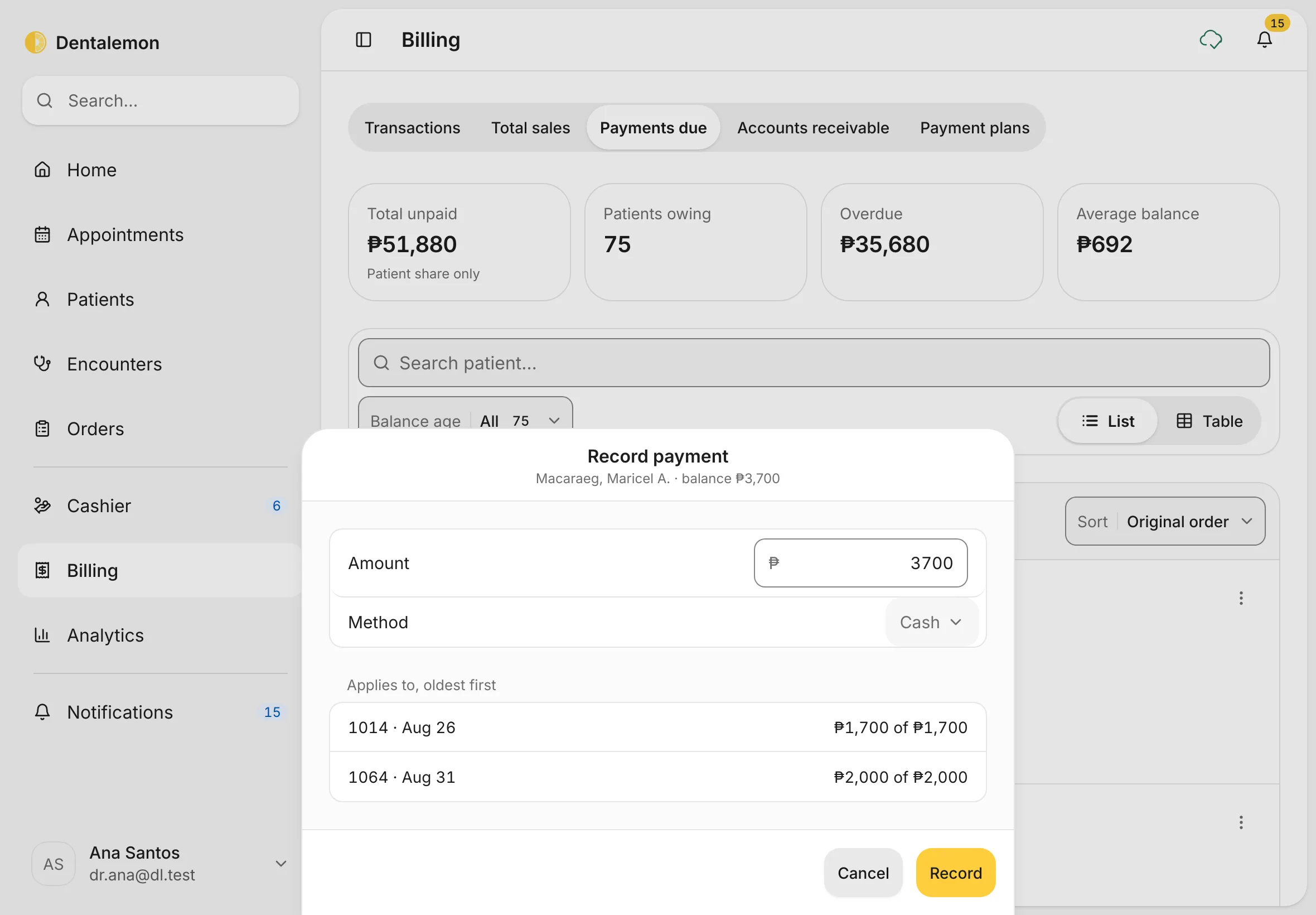
Tap Record payment. Amount starts at the full balance. Change it for a partial payment, choose the Method, then tap Record.
You should see: under Applies to, oldest first, which invoices the money will pay off, before you record it.
5. Track what payers owe you
Tap Accounts receivable. This is the money HMOs and PhilHealth owe the clinic for covered work.
You should see: the amounts grouped by age (0–30 days, 31–60 days, 61–90 days, 90+ days), and a table of claims with the payer, the patient, the service date, when it was submitted, the amount, the age and the status.
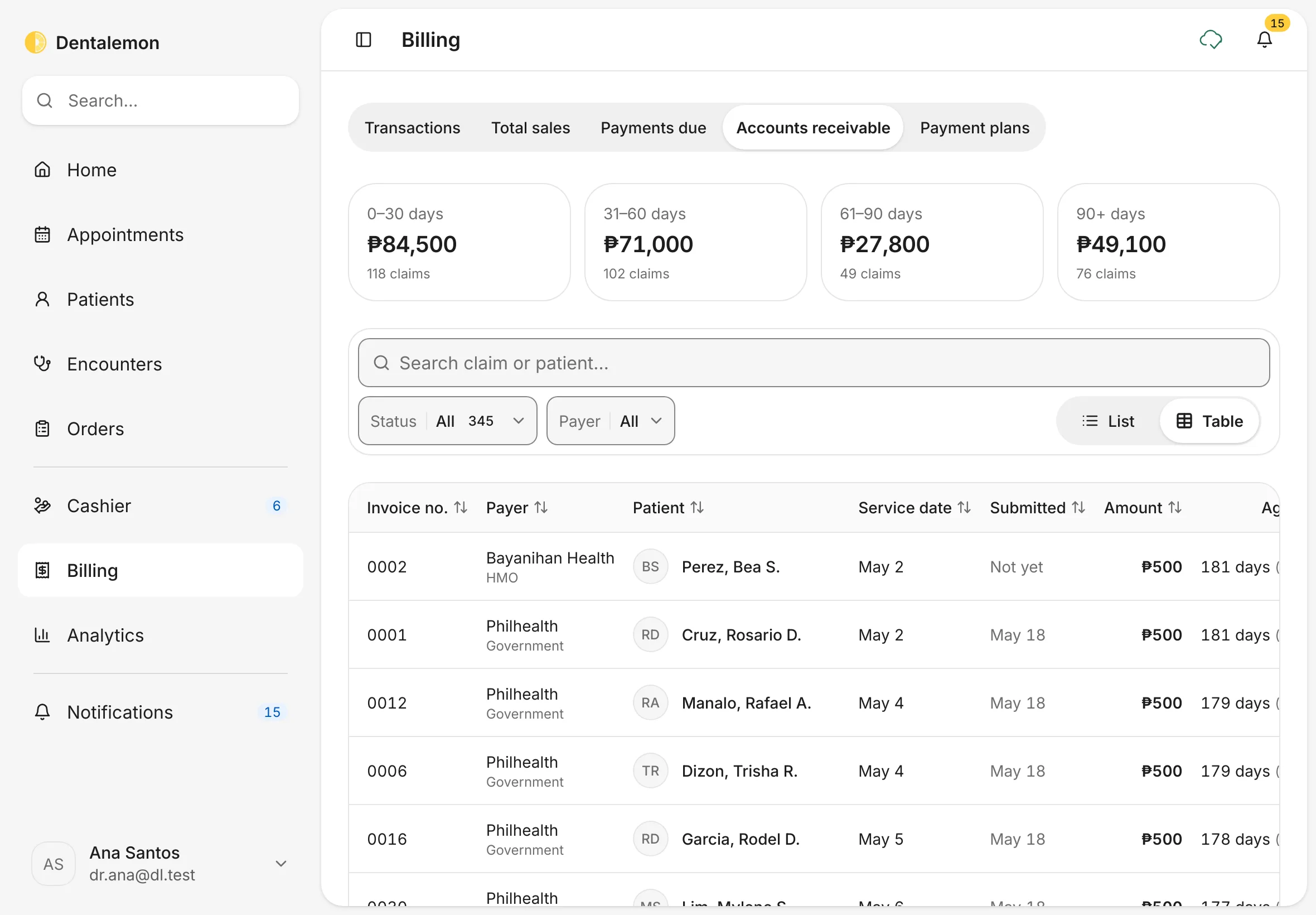
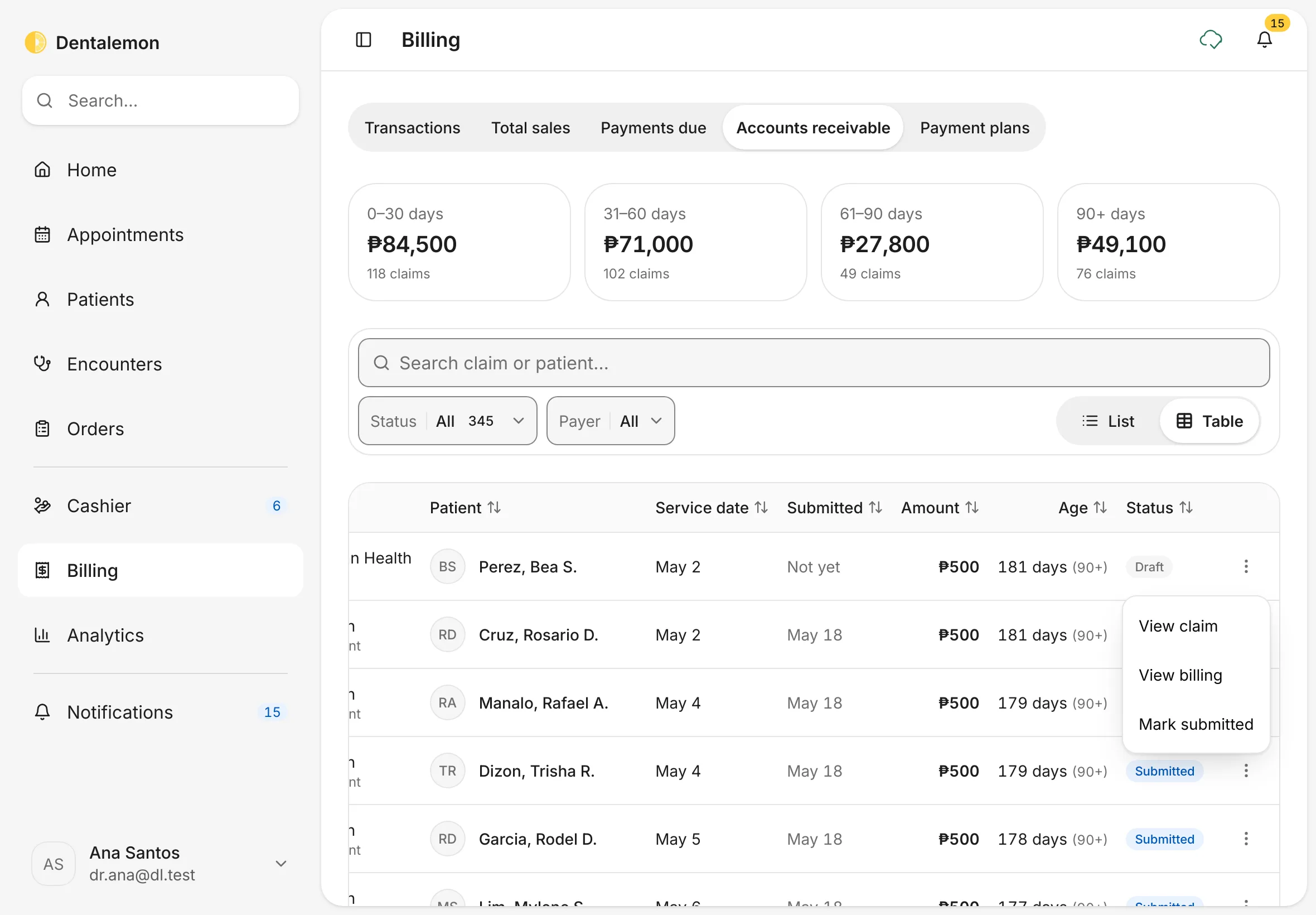
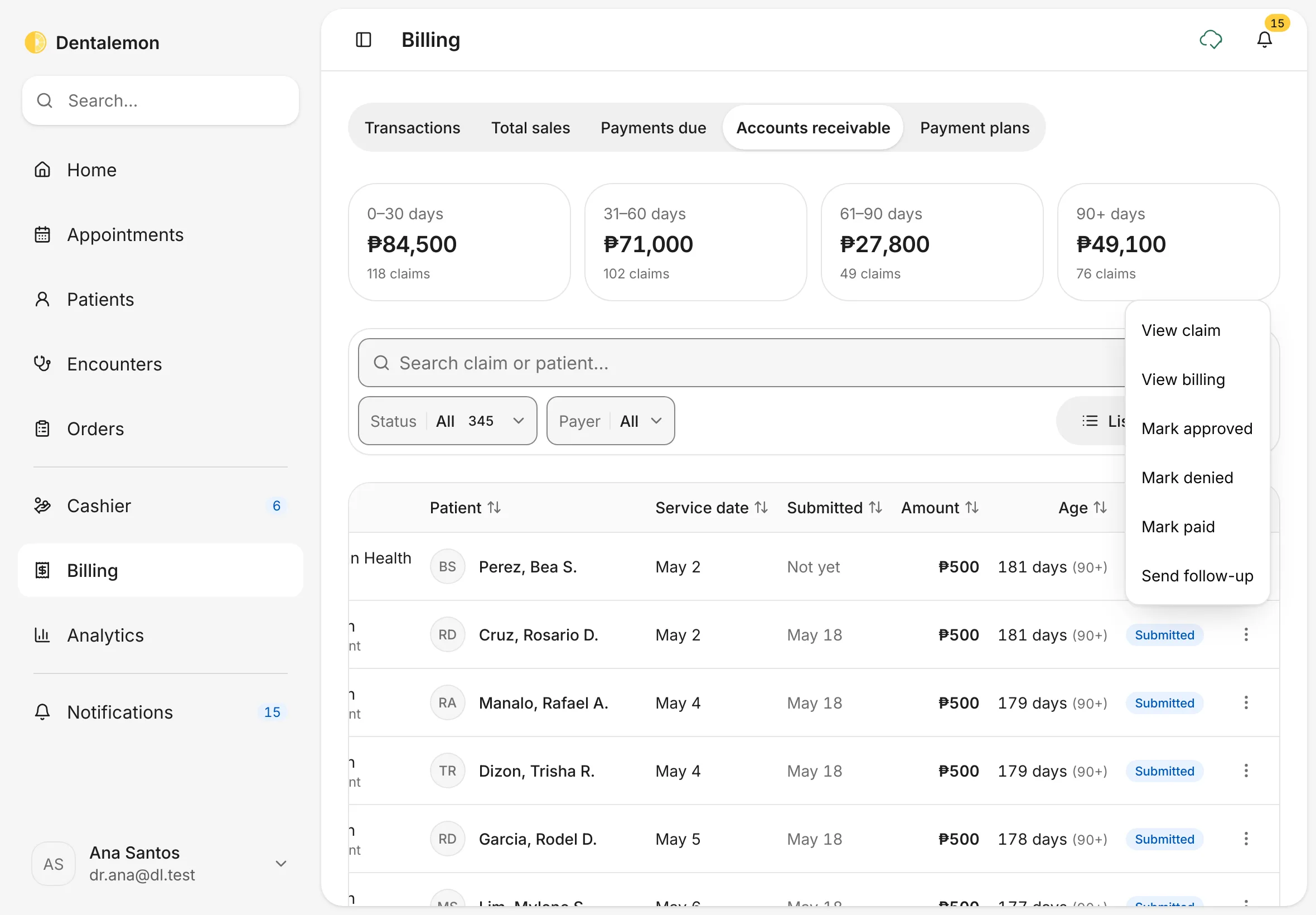
A claim is what a payer owes for one patient's covered work. Filter by Status or Payer, or search by patient. Tap ⋮ at the end of a claim's row to move it along as you deal with the payer:
| Status | What it means | What you can do next (in ⋮) |
|---|---|---|
| Draft | Not sent to the payer yet | Mark submitted once you've sent it |
| Submitted | Sent, waiting for the payer | Mark approved, Mark denied, Mark paid, Send follow-up |
| Approved | The payer agreed to pay | Mark paid when the money arrives, or Mark denied |
| Denied | The payer refused. You type the reason when you mark it denied. | Reopen claim to try again |
| Paid | The payer paid | Nothing more to do. Paid claims leave the Submitted and Approved lists; Status has no Paid option. |
View claim shows the claim's details, and View billing opens the patient's own billing.
When you tap Mark paid (or another step), a message with Undo appears for a few seconds before the change is saved.
Mark paid settles the whole invoice with that payer, not only the row you tapped. For example, tapping one ₱500 row can mark ₱6,000 paid when the invoice has more covered lines for the same payer. Check the amount in the message, for example 0001 marked paid — ₱6,000 from Philippine Health Insurance Corporation (Philhealth), and tap Undo if it isn't what you meant. Send follow-up writes a reminder for you to send from your iPad's share sheet.
6. See one patient's billing
Open a patient and tap the Billing tab. Or, in Billing, tap ⋮ › View billing on a row.
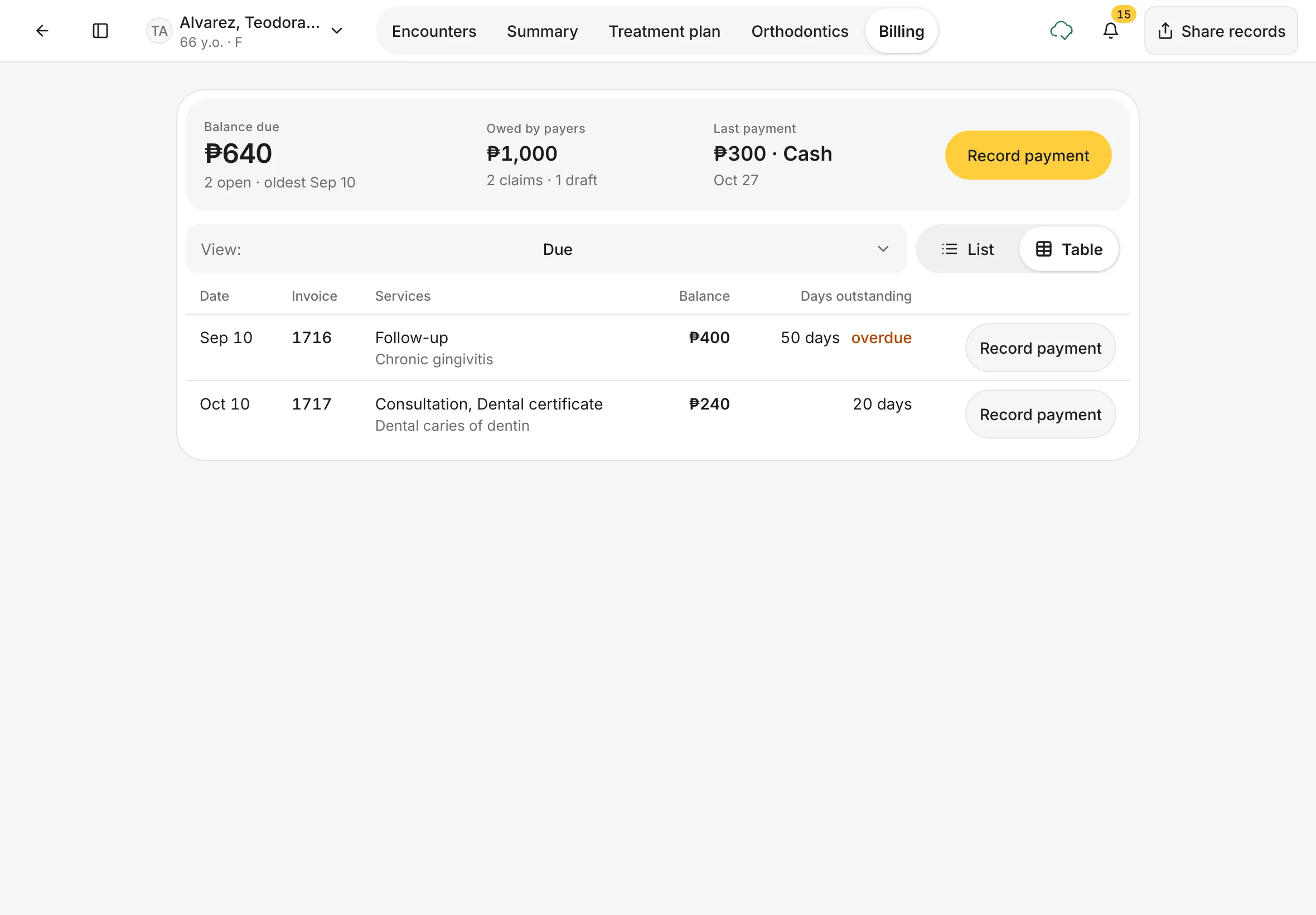
You should see: Balance due, Owed by payers and Last payment at the top, the open invoices with Record payment on each, and a View menu for Due, Statement, Invoices and Claims.
Tips
Patient share only
Payments due counts only what patients owe. What HMOs and PhilHealth owe is under Accounts receivable, so the two never double-count.
If something goes wrong
Record stays greyed out. Read the message under Amount: it must be above ₱0 and can't be more than the balance.
Good to know
- Claims are tracked by hand. Mark submitted and Mark paid only record what you did with the payer. Dentalemon doesn't send claims to PhilHealth or HMOs, and there are no claim numbers yet.
- Send reminder writes the message for you to check, then opens your device's share sheet (Messages, Mail, Viber and so on). Dentalemon doesn't send it itself.
- Payment plans are coming soon. The Payment plans tab says so, and invoices and payments work as usual.